> ## Documentation Index
> Fetch the complete documentation index at: https://help.ples.com/llms.txt
> Use this file to discover all available pages before exploring further.
# How to use 2FA backup codes
> Save the 10 authenticator backup codes Ples shows when you enable TOTP. View or regenerate them from 2FA settings.
When you enable **Authenticator App** 2FA, Ples gives you **10 backup codes**. Each code is 8 characters. Store them somewhere you can reach if you lose the phone.
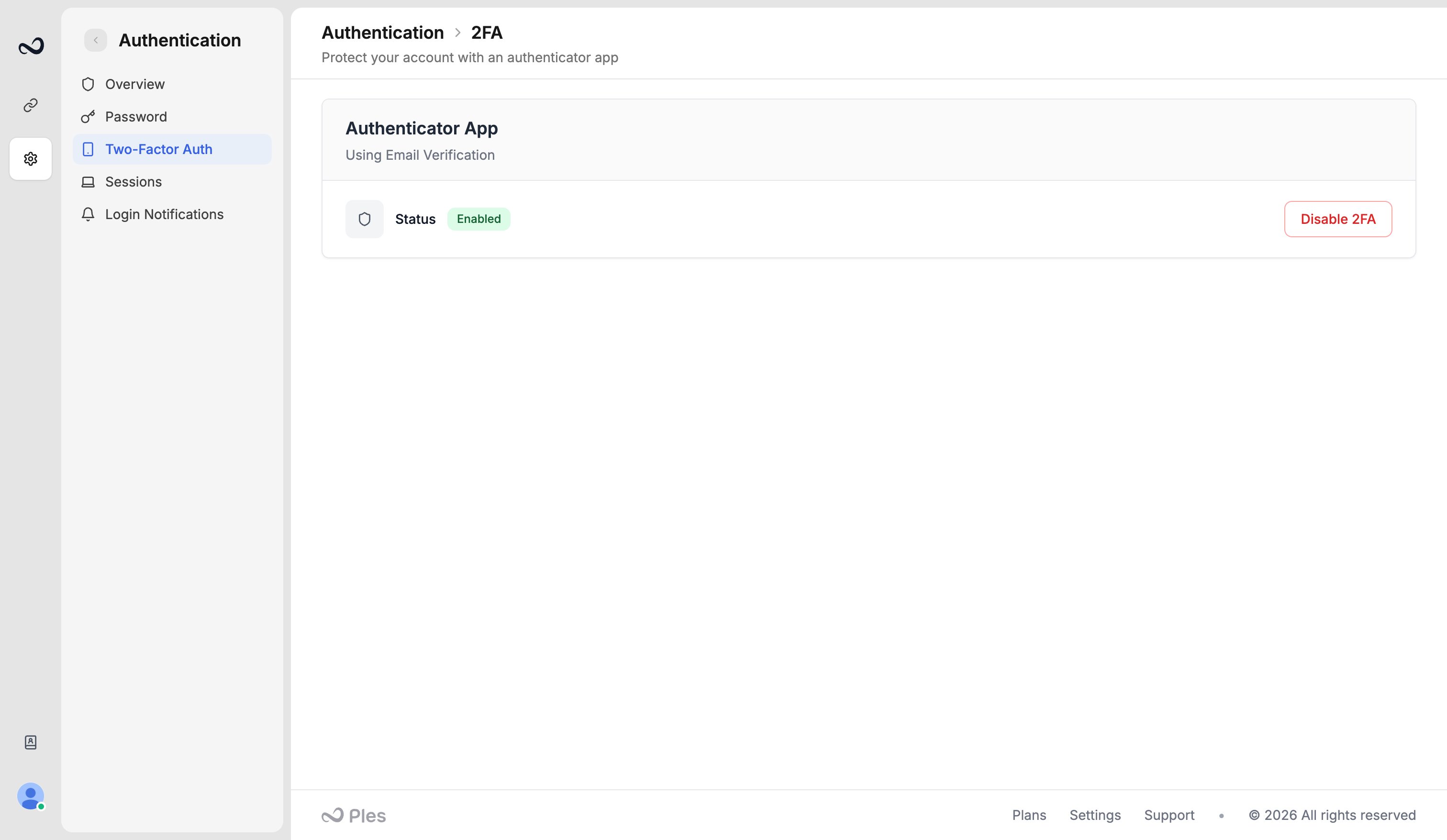 ## Save them when you turn 2FA on
After the TOTP code verifies, open **View Backup Codes** (or the list shown in the wizard).
Keep them offline. Treat them like passwords.
Email OTP 2FA does not use this backup-code list. Codes are for the authenticator method.
## View or regenerate later
Go to [app.ples.com/settings/authentication/2fa](https://app.ples.com/settings/authentication/2fa) while you are still signed in.
View the current set, print them, or **regenerate**. Regenerating invalidates every old code.
## If you cannot sign in
Complete `/2fa-challenge` with a 6-digit authenticator or email code as usual. If you lost the authenticator **and** you cannot use email OTP, [contact support](https://ples.com/contact) from an address that proves you own the account.
Regenerating backup codes while you are signed in is the right move after a lost notebook. Do not regenerate if you have not stored the new set.
## What's next?
Turn on 2FA with an authenticator app or email OTP.
Sign in with your email and password. Complete 2FA if you turned it on.
See devices signed in to your account and terminate a session.
Find mail from [info@e.ples.com](mailto:info@e.ples.com) and check spam for confirmation, OTP, and alerts.
## Save them when you turn 2FA on
After the TOTP code verifies, open **View Backup Codes** (or the list shown in the wizard).
Keep them offline. Treat them like passwords.
Email OTP 2FA does not use this backup-code list. Codes are for the authenticator method.
## View or regenerate later
Go to [app.ples.com/settings/authentication/2fa](https://app.ples.com/settings/authentication/2fa) while you are still signed in.
View the current set, print them, or **regenerate**. Regenerating invalidates every old code.
## If you cannot sign in
Complete `/2fa-challenge` with a 6-digit authenticator or email code as usual. If you lost the authenticator **and** you cannot use email OTP, [contact support](https://ples.com/contact) from an address that proves you own the account.
Regenerating backup codes while you are signed in is the right move after a lost notebook. Do not regenerate if you have not stored the new set.
## What's next?
Turn on 2FA with an authenticator app or email OTP.
Sign in with your email and password. Complete 2FA if you turned it on.
See devices signed in to your account and terminate a session.
Find mail from [info@e.ples.com](mailto:info@e.ples.com) and check spam for confirmation, OTP, and alerts.