> ## Documentation Index
> Fetch the complete documentation index at: https://help.ples.com/llms.txt
> Use this file to discover all available pages before exploring further.
# Account settings
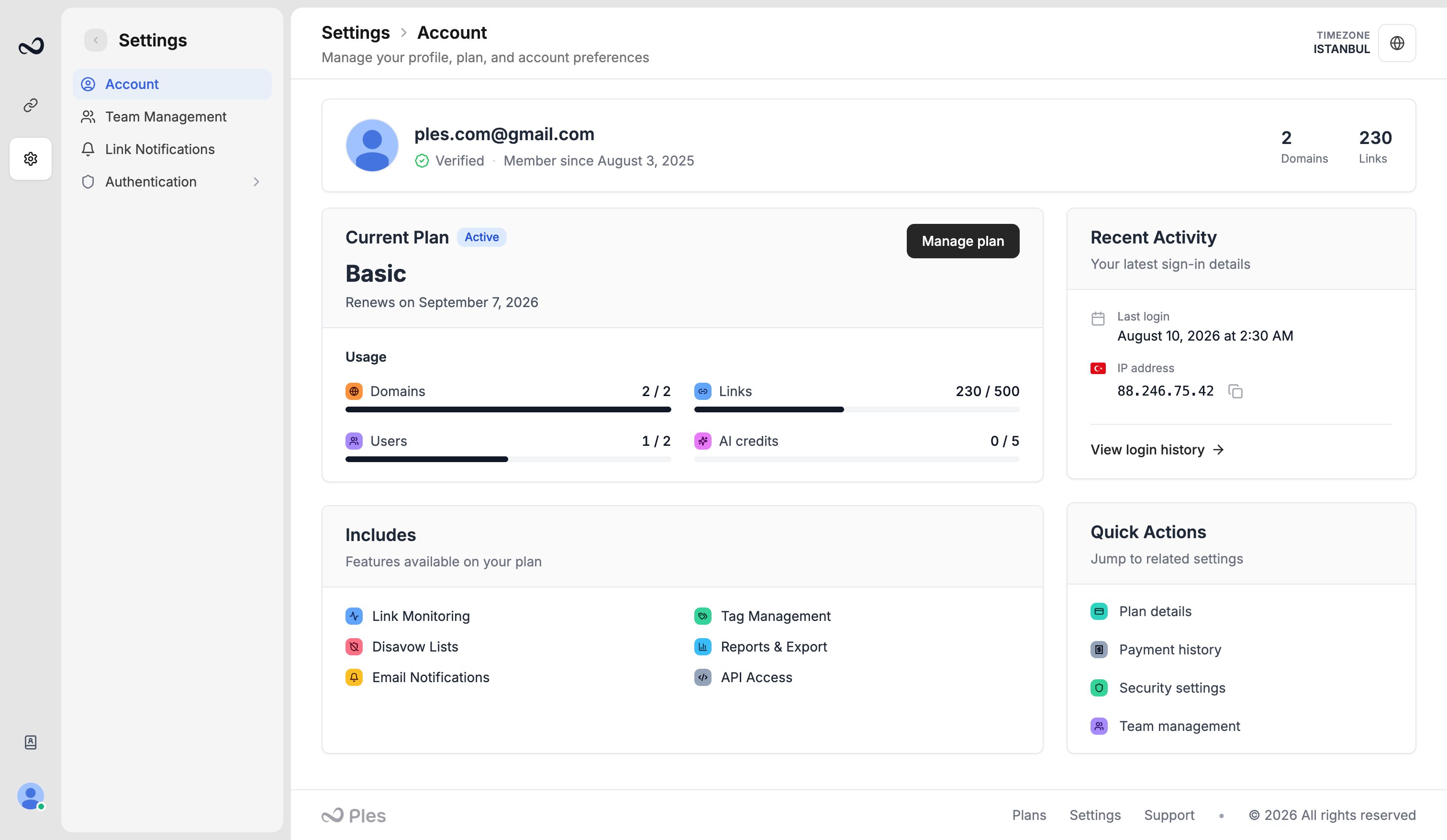
> Set your timezone, change your password, review your avatar, and see usage bars for domains, links, and AI analyses.
**Account** is your profile and usage snapshot. Open it at [app.ples.com/settings/account](https://app.ples.com/settings/account).
 ## Timezone
Dates and times in the panel use this timezone (for example July 15, 2025 on Sessions and invoices). Search for your zone and save. This is per signed-in user, including teammates.
## Password
Change your password from Account. Enter the current password, then the new one, and meet the on-page requirements.
## Avatar
Your avatar is generated from the account email. You do not upload a custom file here.
## Usage bars
Owners see how much of the plan is in use:
* Domains vs plan cap
* Active links vs plan cap
* AI analyses used this month vs [quota](/article/ai-portfolio-analysis)
When a bar is full, Ples blocks the matching add action. See [You hit a plan limit](/article/hit-plan-limit).
Team members see Account for their own timezone and password. Plan usage and billing stay with the owner.
## What's next?
Turn on 2FA with an authenticator app or email OTP.
Domain, link, user, and AI caps on trial and paid plans.
How teams, roles, plans, and invoices fit together.
Email up to 5 recipients when a backlink status changes.
## Timezone
Dates and times in the panel use this timezone (for example July 15, 2025 on Sessions and invoices). Search for your zone and save. This is per signed-in user, including teammates.
## Password
Change your password from Account. Enter the current password, then the new one, and meet the on-page requirements.
## Avatar
Your avatar is generated from the account email. You do not upload a custom file here.
## Usage bars
Owners see how much of the plan is in use:
* Domains vs plan cap
* Active links vs plan cap
* AI analyses used this month vs [quota](/article/ai-portfolio-analysis)
When a bar is full, Ples blocks the matching add action. See [You hit a plan limit](/article/hit-plan-limit).
Team members see Account for their own timezone and password. Plan usage and billing stay with the owner.
## What's next?
Turn on 2FA with an authenticator app or email OTP.
Domain, link, user, and AI caps on trial and paid plans.
How teams, roles, plans, and invoices fit together.
Email up to 5 recipients when a backlink status changes.