> ## Documentation Index
> Fetch the complete documentation index at: https://help.ples.com/llms.txt
> Use this file to discover all available pages before exploring further.
# Anchor text
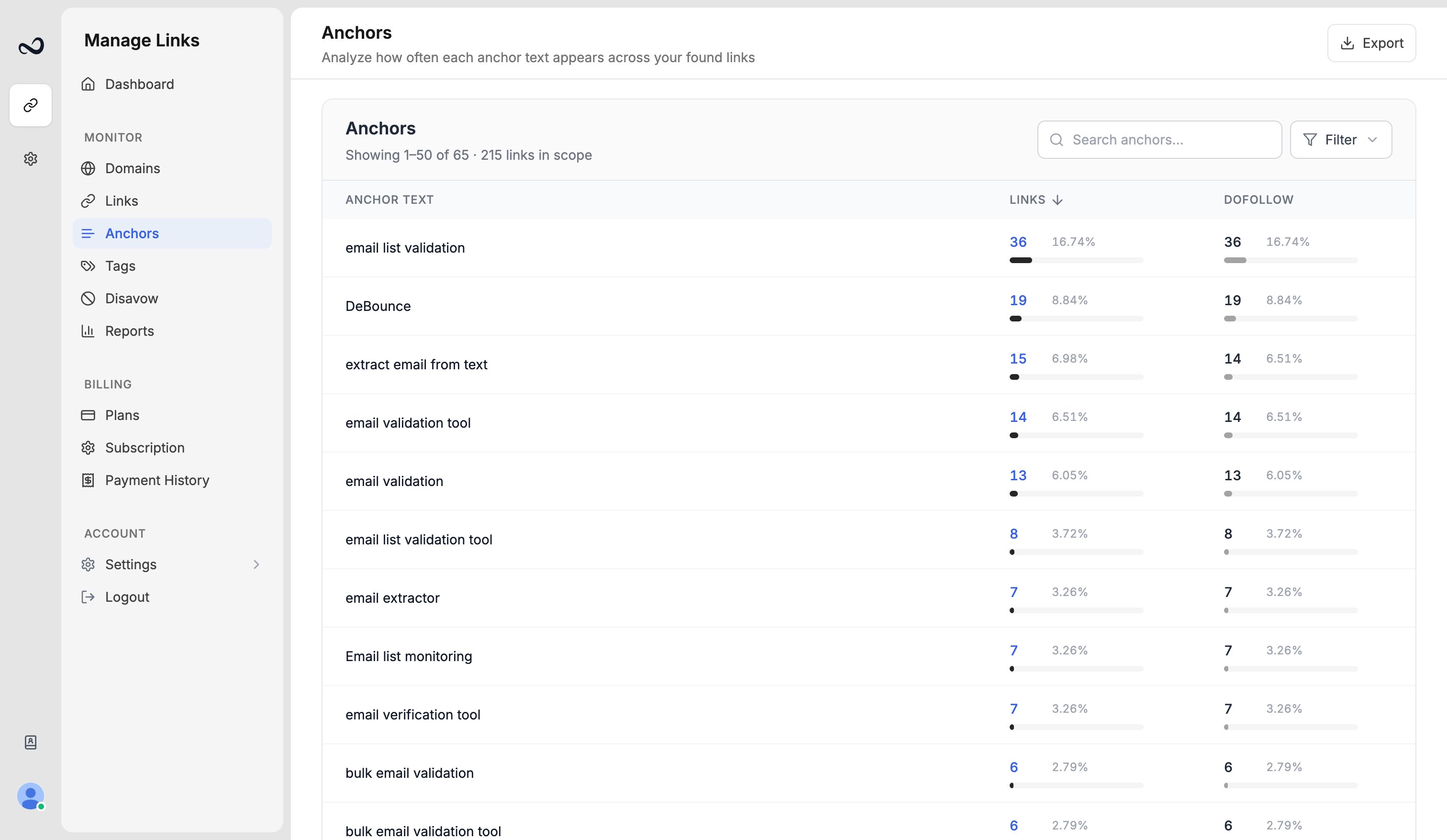
> The Anchors page groups live link anchor text. Click a row to open /links?anchor= for those URLs.
The Anchors page (`/anchors`) aggregates anchor text from **live** links (dofollow and nofollow). Broken and missing links are left out so the profile matches what is still on the page.
 ## How to read Anchors
Go to `/anchors`.
Filter by domain, search an anchor, or sort by link count, dofollow count, or anchor text.
Click an anchor (or its count) to open `/links?anchor=` with that exact text, limited to found dofollow and nofollow rows. If you filtered by domain, that filter carries over.
Image links use the image’s text or alt when Ples has it; otherwise they show as `[image]`. Empty text shows as `[no text]`.
You can also search anchor text from the [global header](/article/filter-sort-search).
## What's next?
Read URL, status, anchor, GI, DR, DA, LQS, last checked, and more.
Filter and sort the Links table, and search domains, URLs, anchors, and tags.
Add up to 150 backlink URLs per submission after you choose a domain.
Create colored tags and assign up to 5 per link.
## How to read Anchors
Go to `/anchors`.
Filter by domain, search an anchor, or sort by link count, dofollow count, or anchor text.
Click an anchor (or its count) to open `/links?anchor=` with that exact text, limited to found dofollow and nofollow rows. If you filtered by domain, that filter carries over.
Image links use the image’s text or alt when Ples has it; otherwise they show as `[image]`. Empty text shows as `[no text]`.
You can also search anchor text from the [global header](/article/filter-sort-search).
## What's next?
Read URL, status, anchor, GI, DR, DA, LQS, last checked, and more.
Filter and sort the Links table, and search domains, URLs, anchors, and tags.
Add up to 150 backlink URLs per submission after you choose a domain.
Create colored tags and assign up to 5 per link.