> ## Documentation Index
> Fetch the complete documentation index at: https://help.ples.com/llms.txt
> Use this file to discover all available pages before exploring further.
# How to filter, sort, and search
> Filter and sort the Links table, and use header search for domains, URLs, anchors, contacts, and tags.
Use the Links filters to narrow the table, click a column header to sort, and use the global header search from any page.
 ## Filter and sort Links
Go to `/links`.
Choose filters such as domain, status, tags, contacts, Google index, DA, PA, spam score, EFL, LQS, last checked, and date added. An active-filter count appears on the button.
Click a sortable header (URL, Status, Anchor, Target, GI, DR, DA, SS, EFL, LQS, and others) to change column and direction.
You can also land on a filtered table from other pages — for example `/links?anchor=` from [Anchors](/article/anchor-text), or a domain filter from **Domains**.
## Header search
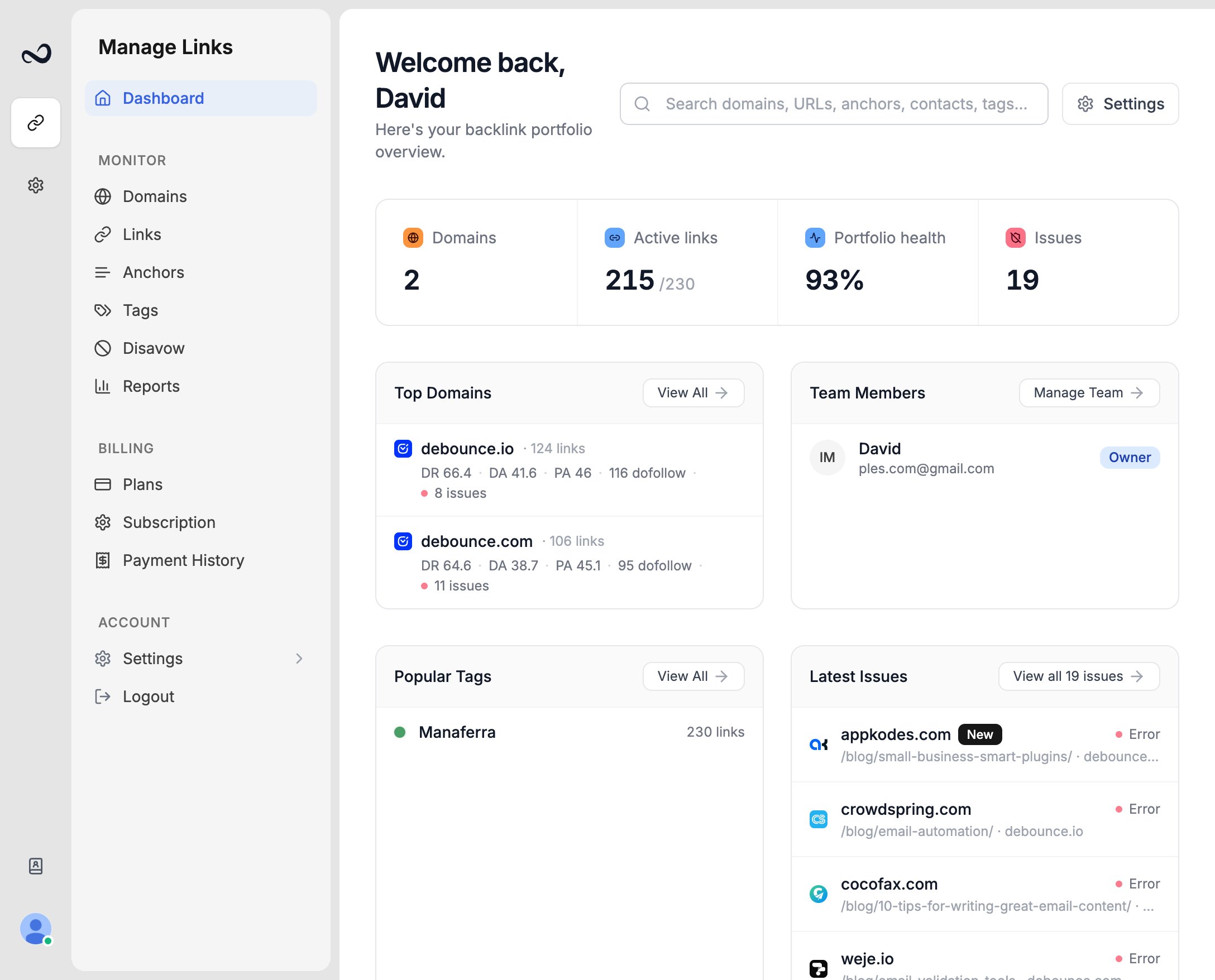
In the global header, use **Search domains, URLs, anchors, contacts, tags...**
Results appear after three characters. Pick a row to open that domain, link, anchor, contact, or tag.
Header search works from the dashboard and other app pages, not only from Links.
## What's next?
Read URL, status, anchor, GI, DR, DA, LQS, last checked, and more.
Create colored tags and assign up to 5 per link.
Save a name and email, then assign the contact to the links they placed.
Select links to add tags, edit contacts, update disavow, or delete rows.
## Filter and sort Links
Go to `/links`.
Choose filters such as domain, status, tags, contacts, Google index, DA, PA, spam score, EFL, LQS, last checked, and date added. An active-filter count appears on the button.
Click a sortable header (URL, Status, Anchor, Target, GI, DR, DA, SS, EFL, LQS, and others) to change column and direction.
You can also land on a filtered table from other pages — for example `/links?anchor=` from [Anchors](/article/anchor-text), or a domain filter from **Domains**.
## Header search
In the global header, use **Search domains, URLs, anchors, contacts, tags...**
Results appear after three characters. Pick a row to open that domain, link, anchor, contact, or tag.
Header search works from the dashboard and other app pages, not only from Links.
## What's next?
Read URL, status, anchor, GI, DR, DA, LQS, last checked, and more.
Create colored tags and assign up to 5 per link.
Save a name and email, then assign the contact to the links they placed.
Select links to add tags, edit contacts, update disavow, or delete rows.