> ## Documentation Index
> Fetch the complete documentation index at: https://help.ples.com/llms.txt
> Use this file to discover all available pages before exploring further.
# You hit a plan limit
> What to do when Ples blocks a new domain, link, teammate, invitation, or AI analysis because of your plan cap.
When you hit a cap, Ples blocks that add and tells you which quota it was. Limits live on the owner’s plan and apply to the whole team.
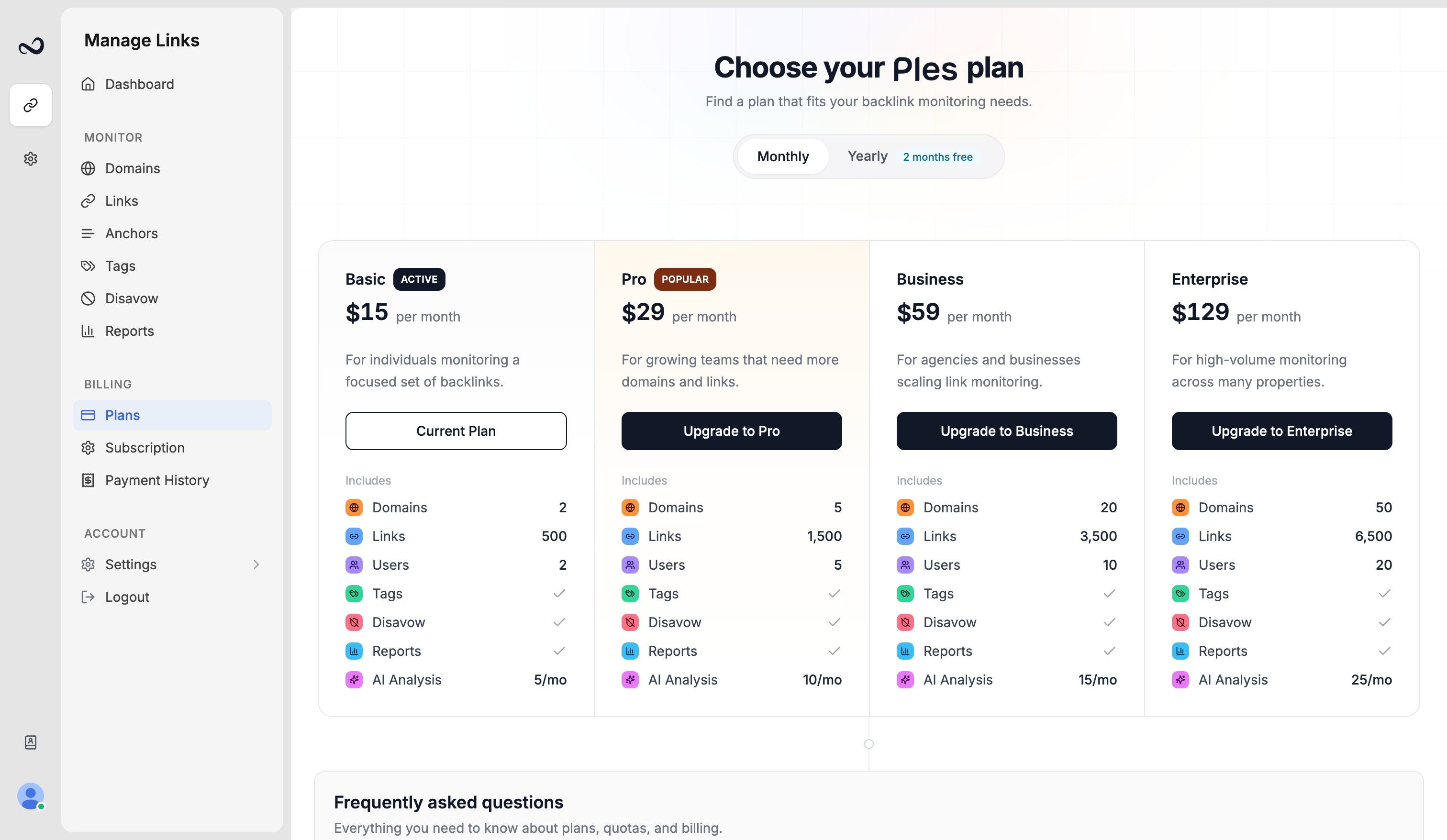 ## Which limit you hit
| Limit | What it caps |
| ------------------- | ----------------------------------------------------------------------------------------------- |
| Domains | How many properties you can monitor |
| Active links | Concurrent monitoring slots. Deleting a link frees a slot |
| Monthly adds | New links submitted this calendar month (up to 1.1× the link cap). Deleting does not reset this |
| Users | Team members, including the owner |
| Pending invitations | Maximum **5** outstanding invites |
| AI analyses | [Analyze Portfolio](/article/ai-portfolio-analysis) runs this month |
Exact numbers are on [Plan limits](/article/plan-limits). Usage bars are on [Account](/article/account-settings).
## What to do
It names domains, links, monthly adds, users, invitations, or AI.
Remove a domain, link, or teammate you no longer need. For monthly adds and AI, wait until next month or [upgrade](/article/upgrade-or-downgrade).
Open `/plans`. Upgrades apply with proration after payment.
You can paste up to 150 URLs in one submission only if you still have active slots **and** monthly add quota.
## What's next?
Domain, link, user, and AI caps on trial and paid plans.
Upgrades apply with proration. Downgrades wait until the period ends.
Basic, Pro, Business, and Enterprise prices, including yearly billing.
Invite an editor or viewer by email from Team, within your plan’s user cap.
## Which limit you hit
| Limit | What it caps |
| ------------------- | ----------------------------------------------------------------------------------------------- |
| Domains | How many properties you can monitor |
| Active links | Concurrent monitoring slots. Deleting a link frees a slot |
| Monthly adds | New links submitted this calendar month (up to 1.1× the link cap). Deleting does not reset this |
| Users | Team members, including the owner |
| Pending invitations | Maximum **5** outstanding invites |
| AI analyses | [Analyze Portfolio](/article/ai-portfolio-analysis) runs this month |
Exact numbers are on [Plan limits](/article/plan-limits). Usage bars are on [Account](/article/account-settings).
## What to do
It names domains, links, monthly adds, users, invitations, or AI.
Remove a domain, link, or teammate you no longer need. For monthly adds and AI, wait until next month or [upgrade](/article/upgrade-or-downgrade).
Open `/plans`. Upgrades apply with proration after payment.
You can paste up to 150 URLs in one submission only if you still have active slots **and** monthly add quota.
## What's next?
Domain, link, user, and AI caps on trial and paid plans.
Upgrades apply with proration. Downgrades wait until the period ends.
Basic, Pro, Business, and Enterprise prices, including yearly billing.
Invite an editor or viewer by email from Team, within your plan’s user cap.