> ## Documentation Index
> Fetch the complete documentation index at: https://help.ples.com/llms.txt
> Use this file to discover all available pages before exploring further.
# Link details
> Open a link to see status, metrics, target URL, date added, last check, contacts, and the link visualizer.
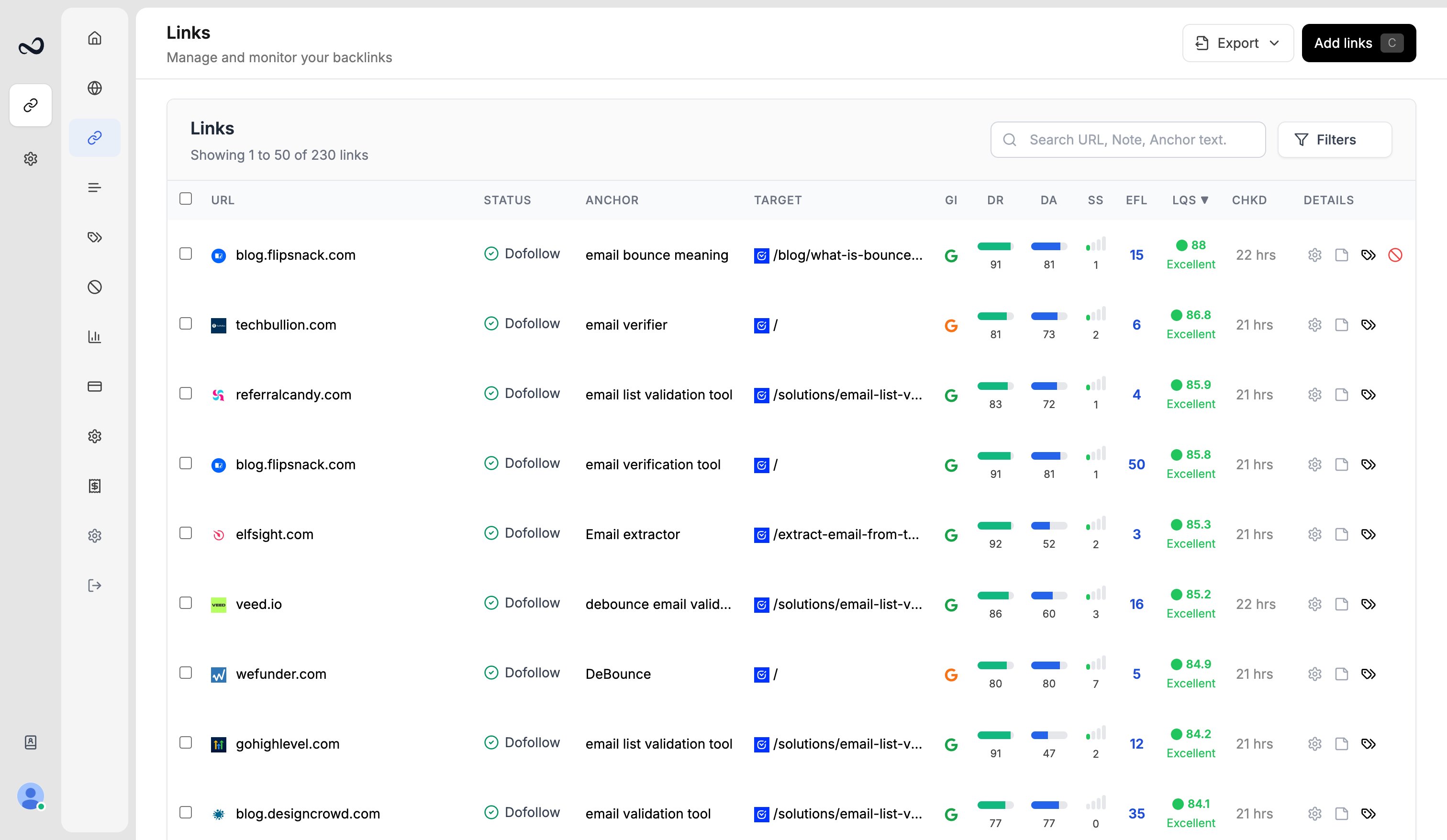
Click a URL in the Links table to open that link’s details. You get status, a page screenshot, metrics, and shortcuts to open or visualize the page.
 ## Steps
Go to `/links`.
Click the URL (or domain cell) for the row you want.
Details include:
* URL, status, and redirect target if the check followed a redirect
* **Anchor**, **Checks**, **Date added** (for example July 15, 2025), **Last check**, **Target URL**, **Domain**
* Domain metrics: DA, PA, DR, spam score, monthly organic traffic, EFL, LQS
* Assigned contacts
Use the icons to open the live URL, open [Link Visualizer](/article/link-visualizer) (`/link-visualizer?link_id=`), or copy the URL. You can change the destination domain from this panel if you have edit permission.
LQS is blank when Ples has no DA or DR (or equivalent authority metric) for the linking page. See [What is LQS?](/article/what-is-lqs).
## What's next?
Preview the linking page with the monitored link highlighted.
LQS is a 0–100 score from DA, DR, PA, spam, traffic, and EFL.
DA, PA, and spam score come from Moz. Domain Rating is shown in the Ples UI.
Read URL, status, anchor, GI, DR, DA, LQS, last checked, and more.
## Steps
Go to `/links`.
Click the URL (or domain cell) for the row you want.
Details include:
* URL, status, and redirect target if the check followed a redirect
* **Anchor**, **Checks**, **Date added** (for example July 15, 2025), **Last check**, **Target URL**, **Domain**
* Domain metrics: DA, PA, DR, spam score, monthly organic traffic, EFL, LQS
* Assigned contacts
Use the icons to open the live URL, open [Link Visualizer](/article/link-visualizer) (`/link-visualizer?link_id=`), or copy the URL. You can change the destination domain from this panel if you have edit permission.
LQS is blank when Ples has no DA or DR (or equivalent authority metric) for the linking page. See [What is LQS?](/article/what-is-lqs).
## What's next?
Preview the linking page with the monitored link highlighted.
LQS is a 0–100 score from DA, DR, PA, spam, traffic, and EFL.
DA, PA, and spam score come from Moz. Domain Rating is shown in the Ples UI.
Read URL, status, anchor, GI, DR, DA, LQS, last checked, and more.