> ## Documentation Index
> Fetch the complete documentation index at: https://help.ples.com/llms.txt
> Use this file to discover all available pages before exploring further.
# Link statuses
> Ples statuses: Dofollow, Nofollow, Not Found, Error, and Waiting. Checks run about every 24 hours.
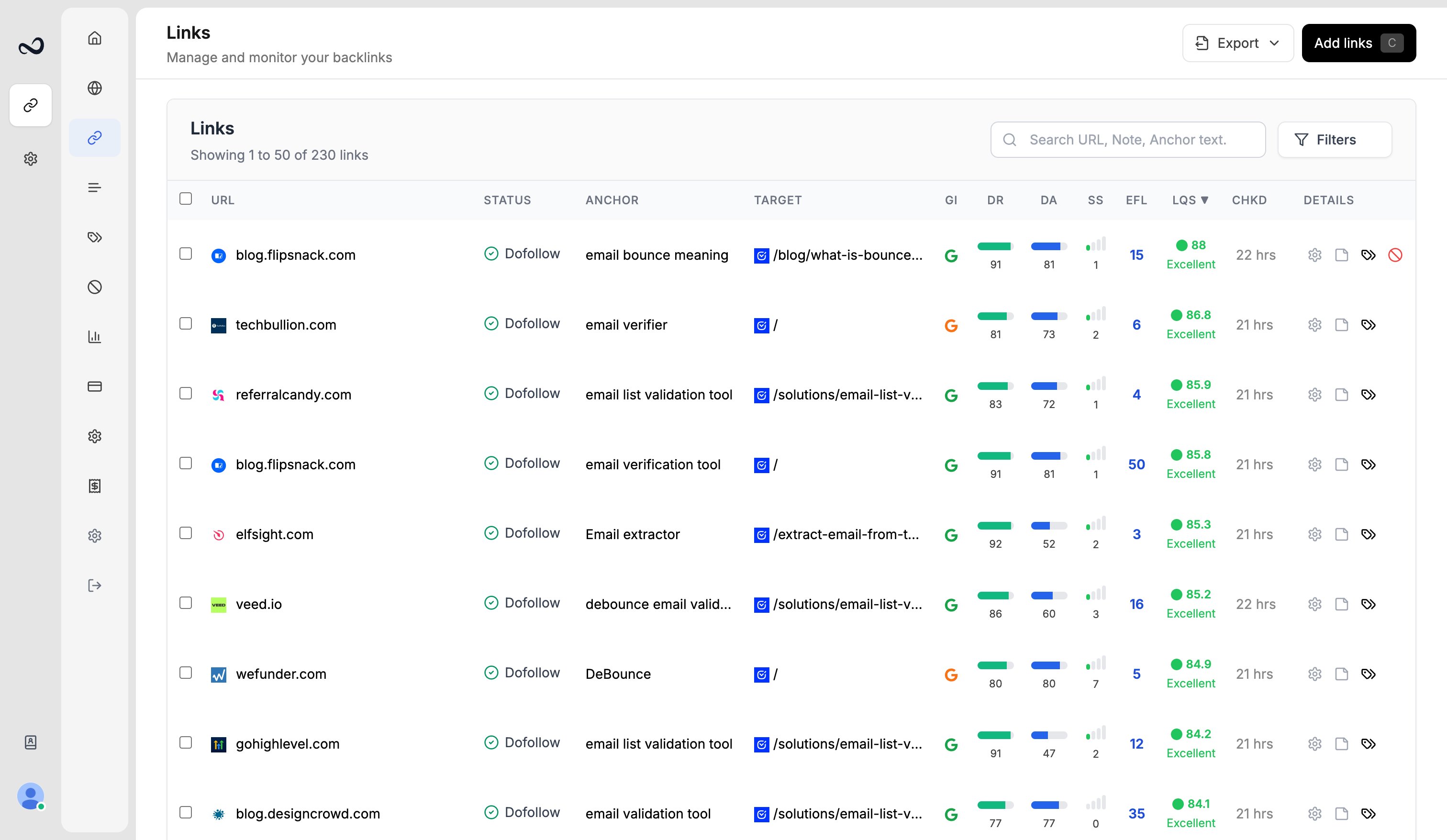
Ples stores a status on each link after it fetches the page. The Links table shows the label; filters use the internal value.
 ## Statuses
\| Label | Value | Meaning | | --- | --- | | **Dofollow** | `found_dofollow` | Ples found a dofollow link to your domain | | **Nofollow** | `found_nofollow` | Ples found the link, and it is nofollow | | **Not Found** | `not_found` | The page loaded, but Ples did not find the link | | **Error** | `error` | The check failed (for example the page did not load) | | **Waiting** | `waiting` | No completed check yet, or the row is queued |
New links stay **Waiting** until the first check. After that, Ples rechecks about every 24 hours.
**Error**, **Not Found**, and **Nofollow** also appear on [Issues](/article/link-issues) (`/links-issues`).
## How to filter by status
Go to `/links`.
Open the filter panel and select one or more statuses.
Apply the filter. The table shows only matching rows.
## What's next?
Review error, not found, and nofollow links on the Issues page.
Add up to 150 backlink URLs per submission after you choose a domain.
Read URL, status, anchor, GI, DR, DA, LQS, last checked, and more.
LQS is a 0–100 score from DA, DR, PA, spam, traffic, and EFL.
## Statuses
\| Label | Value | Meaning | | --- | --- | | **Dofollow** | `found_dofollow` | Ples found a dofollow link to your domain | | **Nofollow** | `found_nofollow` | Ples found the link, and it is nofollow | | **Not Found** | `not_found` | The page loaded, but Ples did not find the link | | **Error** | `error` | The check failed (for example the page did not load) | | **Waiting** | `waiting` | No completed check yet, or the row is queued |
New links stay **Waiting** until the first check. After that, Ples rechecks about every 24 hours.
**Error**, **Not Found**, and **Nofollow** also appear on [Issues](/article/link-issues) (`/links-issues`).
## How to filter by status
Go to `/links`.
Open the filter panel and select one or more statuses.
Apply the filter. The table shows only matching rows.
## What's next?
Review error, not found, and nofollow links on the Issues page.
Add up to 150 backlink URLs per submission after you choose a domain.
Read URL, status, anchor, GI, DR, DA, LQS, last checked, and more.
LQS is a 0–100 score from DA, DR, PA, spam, traffic, and EFL.