> ## Documentation Index
> Fetch the complete documentation index at: https://help.ples.com/llms.txt
> Use this file to discover all available pages before exploring further.
# How to read portfolio reports
> Interpret link health, average LQS, DA/PA/DR charts, Google indexing, tag performance, and disavow candidates.
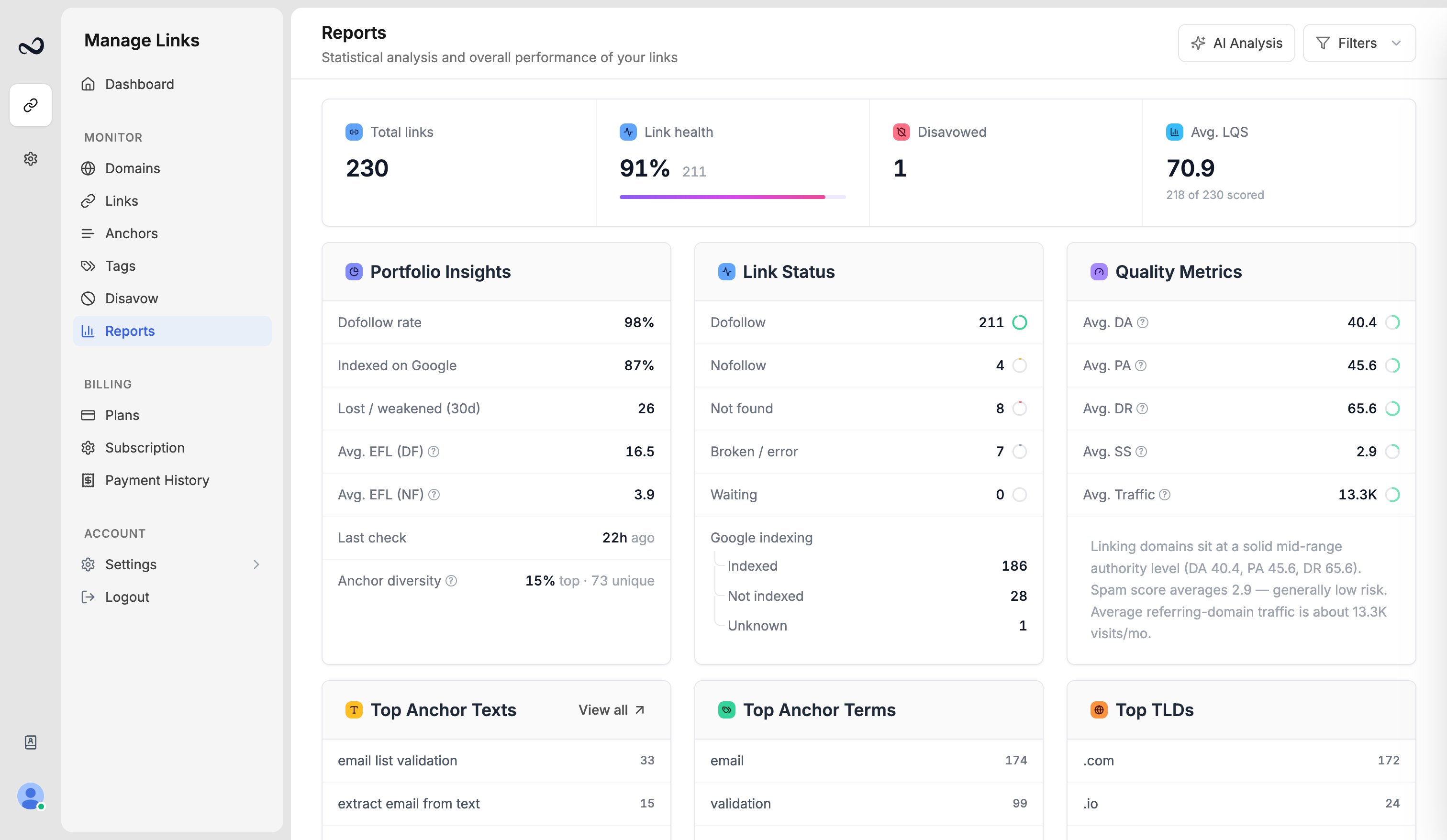
Use **Reports** (`/reports`) to judge the quality of the backlinks you already monitor — not to discover new ones.
 ## Link health and average LQS
* **Link health** is the percentage of links that are live **dofollow**. A drop usually means more nofollow, not found, or error rows — open [Link issues](/article/link-issues) to act.
* **Avg. LQS** is the mean [Link Quality Score](/article/what-is-lqs) for links that have a score. Waiting or unscored rows are excluded from the average.
## Authority distribution
Quality Metrics shows average **Domain Authority (DA)**, **Page Authority (PA)**, and **Domain Rating (DR)**, plus how those scores are distributed. Expand a metric to see how many links sit in each band.
High averages with a long tail of weak domains often means a few strong placements are carrying the rest of the list.
## Indexing
For links Ples found (dofollow or nofollow), Reports splits **Indexed**, **Not indexed**, and **Unknown**. Error and not-found rows are left out of that percentage. See [Google indexing](/article/google-indexing).
## Tag performance
If you use [tags](/article/tags), Reports compares groups by average LQS, dofollow rate, and issues. Use this to see which campaigns are holding up.
## Disavow candidates
Reports flags links with **high spam score** or **weak LQS** that are not already disavowed. Review them before you add anything to the [disavow list](/article/disavow-list).
## Use the filter panel
Narrow the page to one domain, a status, a tag, a contact, disavow state, or text vs image anchors. Click a metric to jump into the matching Links or Issues view with those filters applied.
Filter to a single domain before you brief a client. For example, David can show only `example.com` instead of the whole account.
## What's next?
See portfolio health, average LQS, indexing, tags, and disavow candidates.
Run Analyze Portfolio on Reports to get ChatGPT insights within your plan quota.
LQS is a 0–100 score from DA, DR, PA, spam, traffic, and EFL.
DA, PA, and spam score come from Moz. Domain Rating is shown in the Ples UI.
## Link health and average LQS
* **Link health** is the percentage of links that are live **dofollow**. A drop usually means more nofollow, not found, or error rows — open [Link issues](/article/link-issues) to act.
* **Avg. LQS** is the mean [Link Quality Score](/article/what-is-lqs) for links that have a score. Waiting or unscored rows are excluded from the average.
## Authority distribution
Quality Metrics shows average **Domain Authority (DA)**, **Page Authority (PA)**, and **Domain Rating (DR)**, plus how those scores are distributed. Expand a metric to see how many links sit in each band.
High averages with a long tail of weak domains often means a few strong placements are carrying the rest of the list.
## Indexing
For links Ples found (dofollow or nofollow), Reports splits **Indexed**, **Not indexed**, and **Unknown**. Error and not-found rows are left out of that percentage. See [Google indexing](/article/google-indexing).
## Tag performance
If you use [tags](/article/tags), Reports compares groups by average LQS, dofollow rate, and issues. Use this to see which campaigns are holding up.
## Disavow candidates
Reports flags links with **high spam score** or **weak LQS** that are not already disavowed. Review them before you add anything to the [disavow list](/article/disavow-list).
## Use the filter panel
Narrow the page to one domain, a status, a tag, a contact, disavow state, or text vs image anchors. Click a metric to jump into the matching Links or Issues view with those filters applied.
Filter to a single domain before you brief a client. For example, David can show only `example.com` instead of the whole account.
## What's next?
See portfolio health, average LQS, indexing, tags, and disavow candidates.
Run Analyze Portfolio on Reports to get ChatGPT insights within your plan quota.
LQS is a 0–100 score from DA, DR, PA, spam, traffic, and EFL.
DA, PA, and spam score come from Moz. Domain Rating is shown in the Ples UI.