> ## Documentation Index
> Fetch the complete documentation index at: https://help.ples.com/llms.txt
> Use this file to discover all available pages before exploring further.
# Reports overview
> See portfolio health, average LQS, authority distribution, indexing, tags, and disavow candidates on Reports.
**Reports** summarizes your monitored backlinks in one place. Open it at [app.ples.com/reports](https://app.ples.com/reports). You need the **Reports** view permission.
 ## What the page shows
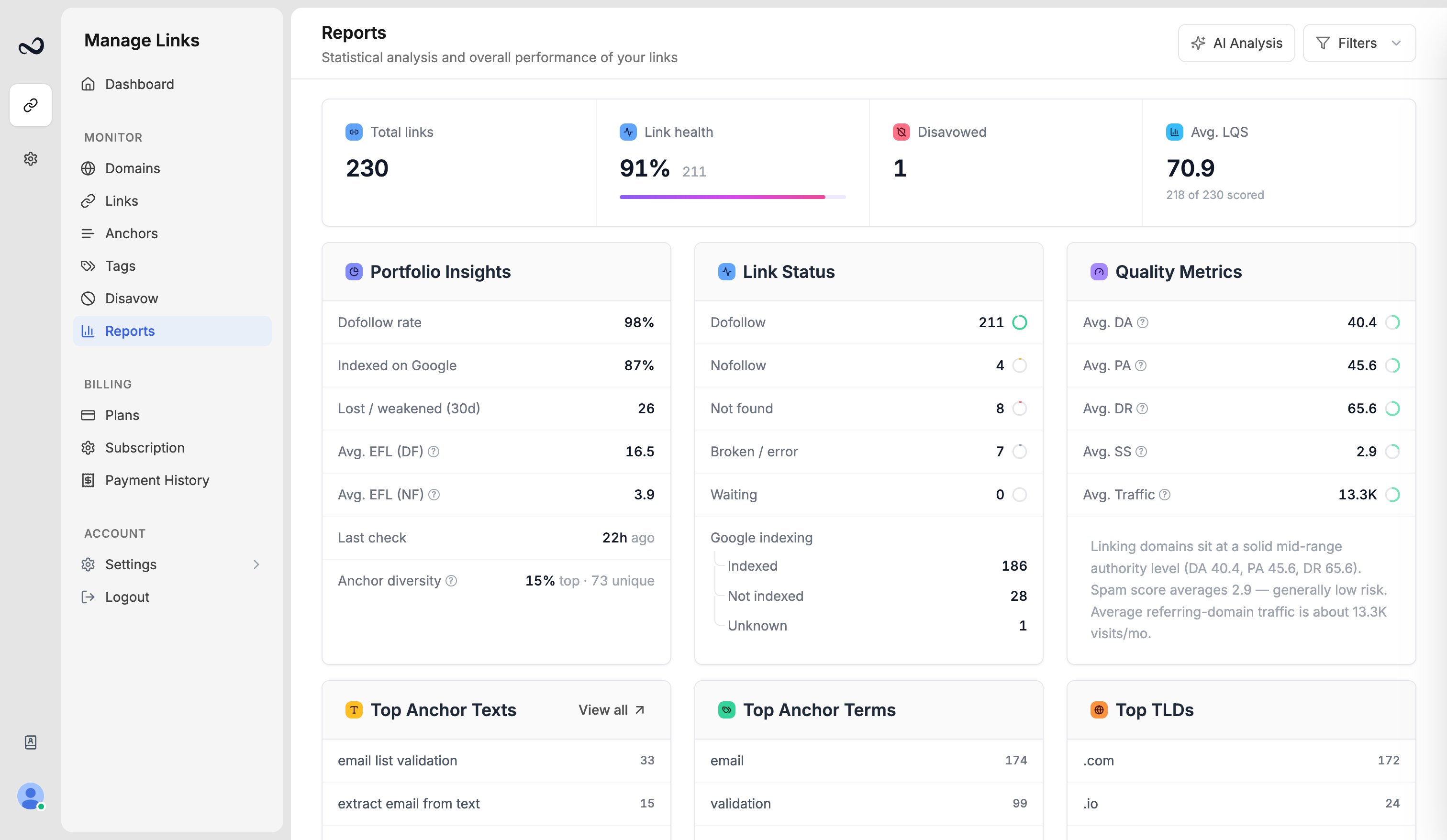
* **Link health** — share of live dofollow links
* **Avg. LQS** — mean [Link Quality Score](/article/what-is-lqs) across scored links
* **DA / PA / DR distribution** — how Moz Domain Authority, Page Authority, and Ahrefs Domain Rating spread across the portfolio
* **Indexing** — how many found links are indexed, not indexed, or unknown on Google
* **Tag performance** — how tagged groups compare (average LQS, dofollow rate, issues)
* **Disavow candidates** — links with high spam score or weak LQS that are not on your [disavow list](/article/disavow-list) yet
You also see status counts (dofollow, nofollow, not found, error, waiting), lost or weakened links over 30 days, and related breakdowns such as anchors and link type.
## Filter the portfolio
Use the filter panel to limit charts to selected **domains**, **statuses**, **tags**, **contacts**, **disavow** state, and **anchor type** (text or image). Filters apply to the numbers on the page.
## Analyze and export
* Click **Analyze Portfolio** for a [ChatGPT analysis](/article/ai-portfolio-analysis) of the current filtered set (uses your monthly AI quota).
* Export the underlying rows as PDF or Excel from [Links](/article/export-links-report).
You need at least one monitored link before Reports has data to show.
## What's next?
Interpret link health, average LQS, authority charts, and indexing on Reports.
Run Analyze Portfolio on Reports to get ChatGPT insights within your plan quota.
Download monitored backlinks as Excel or PDF. Filters on Links apply to the file.
Mark toxic backlinks and prepare a file for Google Search Console.
## What the page shows
* **Link health** — share of live dofollow links
* **Avg. LQS** — mean [Link Quality Score](/article/what-is-lqs) across scored links
* **DA / PA / DR distribution** — how Moz Domain Authority, Page Authority, and Ahrefs Domain Rating spread across the portfolio
* **Indexing** — how many found links are indexed, not indexed, or unknown on Google
* **Tag performance** — how tagged groups compare (average LQS, dofollow rate, issues)
* **Disavow candidates** — links with high spam score or weak LQS that are not on your [disavow list](/article/disavow-list) yet
You also see status counts (dofollow, nofollow, not found, error, waiting), lost or weakened links over 30 days, and related breakdowns such as anchors and link type.
## Filter the portfolio
Use the filter panel to limit charts to selected **domains**, **statuses**, **tags**, **contacts**, **disavow** state, and **anchor type** (text or image). Filters apply to the numbers on the page.
## Analyze and export
* Click **Analyze Portfolio** for a [ChatGPT analysis](/article/ai-portfolio-analysis) of the current filtered set (uses your monthly AI quota).
* Export the underlying rows as PDF or Excel from [Links](/article/export-links-report).
You need at least one monitored link before Reports has data to show.
## What's next?
Interpret link health, average LQS, authority charts, and indexing on Reports.
Run Analyze Portfolio on Reports to get ChatGPT insights within your plan quota.
Download monitored backlinks as Excel or PDF. Filters on Links apply to the file.
Mark toxic backlinks and prepare a file for Google Search Console.