> ## Documentation Index
> Fetch the complete documentation index at: https://help.ples.com/llms.txt
> Use this file to discover all available pages before exploring further.
# Roles and permissions
> Owner, Admin, Editor, and Viewer roles, plus per-menu view and edit for domains, links, tags, disavow, reports, contacts, billing, and notifications.
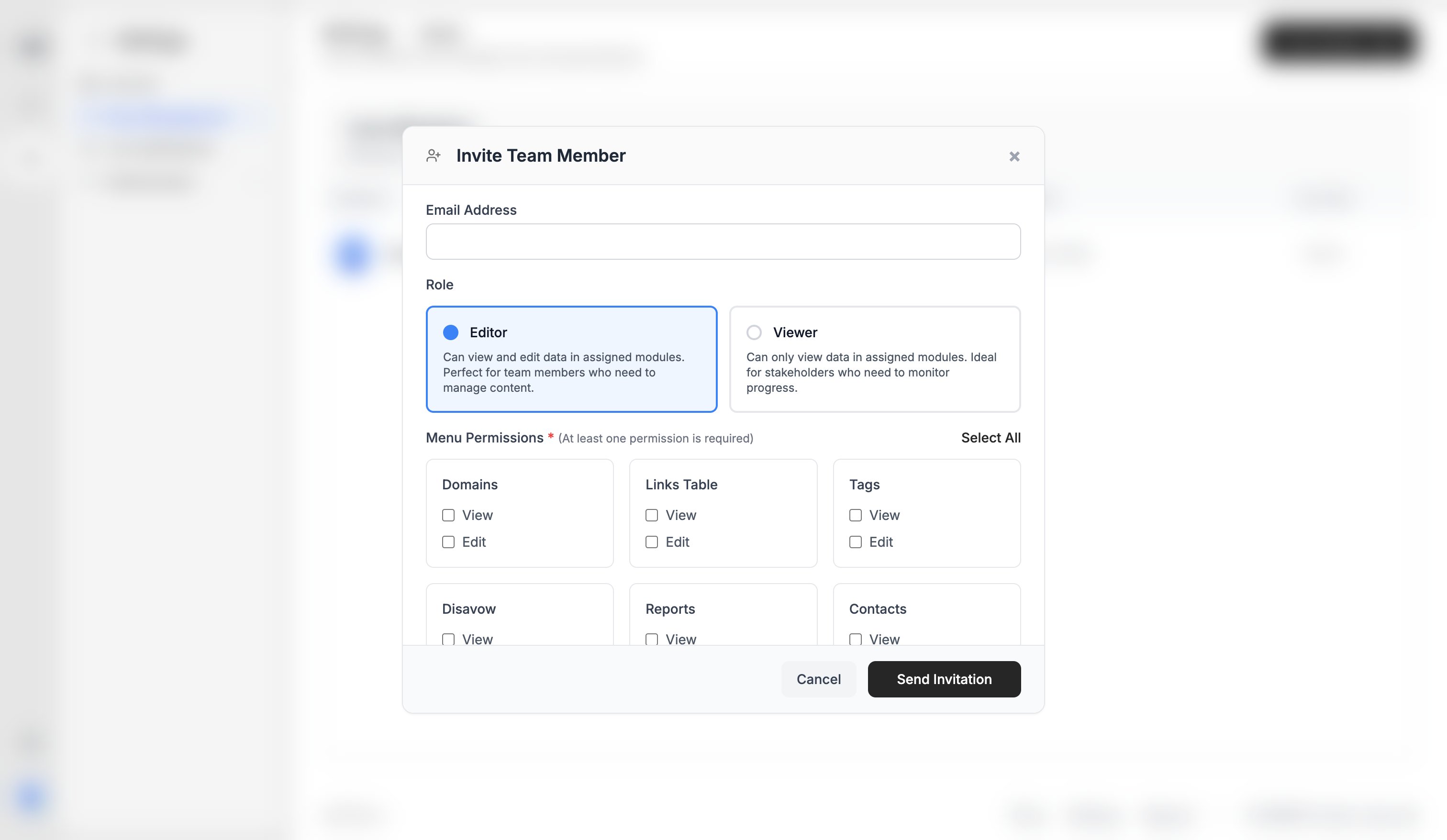
Ples uses three roles. The account **owner** is the admin who created the team. Owners invite **Editor** or **Viewer** members and set which menus they can open.
 ## Roles
| Role | Who it is | What they can do |
| ------------- | ---------------------------------- | ------------------------------------------------------------------------------ |
| Owner / Admin | Account holder (for example David) | Invite and remove members, set permissions, manage billing, and use every menu |
| Editor | Invited teammate | View and edit the menus you grant |
| Viewer | Invited teammate | View the menus you grant — no edit |
You cannot invite another owner. Change a member’s role later from **Team** (`/settings/team-management`). Switching someone to Viewer clears their edit checkboxes.
## Per-menu access
For each Editor or Viewer, turn **view** and (for Editors) **edit** on or off:
* **Domains**
* **Links Table**
* **Tags**
* **Disavow**
* **Reports**
* **Contacts**
* **Billing**
* **Notifications**
A person without view on a menu does not see it in the sidebar. Edit is required to add, change, or delete items in that menu.
Team size is capped by the plan’s **users** limit. See [Plan limits](/article/plan-limits).
## What's next?
Invite an editor or viewer by email from Team, within your plan’s user cap.
How teams, roles, plans, and invoices fit together.
Set your timezone, change your password, and see usage for domains, links, and AI.
Turn on 2FA with an authenticator app or email OTP.
## Roles
| Role | Who it is | What they can do |
| ------------- | ---------------------------------- | ------------------------------------------------------------------------------ |
| Owner / Admin | Account holder (for example David) | Invite and remove members, set permissions, manage billing, and use every menu |
| Editor | Invited teammate | View and edit the menus you grant |
| Viewer | Invited teammate | View the menus you grant — no edit |
You cannot invite another owner. Change a member’s role later from **Team** (`/settings/team-management`). Switching someone to Viewer clears their edit checkboxes.
## Per-menu access
For each Editor or Viewer, turn **view** and (for Editors) **edit** on or off:
* **Domains**
* **Links Table**
* **Tags**
* **Disavow**
* **Reports**
* **Contacts**
* **Billing**
* **Notifications**
A person without view on a menu does not see it in the sidebar. Edit is required to add, change, or delete items in that menu.
Team size is capped by the plan’s **users** limit. See [Plan limits](/article/plan-limits).
## What's next?
Invite an editor or viewer by email from Team, within your plan’s user cap.
How teams, roles, plans, and invoices fit together.
Set your timezone, change your password, and see usage for domains, links, and AI.
Turn on 2FA with an authenticator app or email OTP.