> ## Documentation Index
> Fetch the complete documentation index at: https://help.ples.com/llms.txt
> Use this file to discover all available pages before exploring further.
# Sessions
> See devices signed in to your Ples account and terminate a session or all other sessions.
**Sessions** lists devices that are currently signed in to your account. Open it at [app.ples.com/settings/authentication/sessions](https://app.ples.com/settings/authentication/sessions).
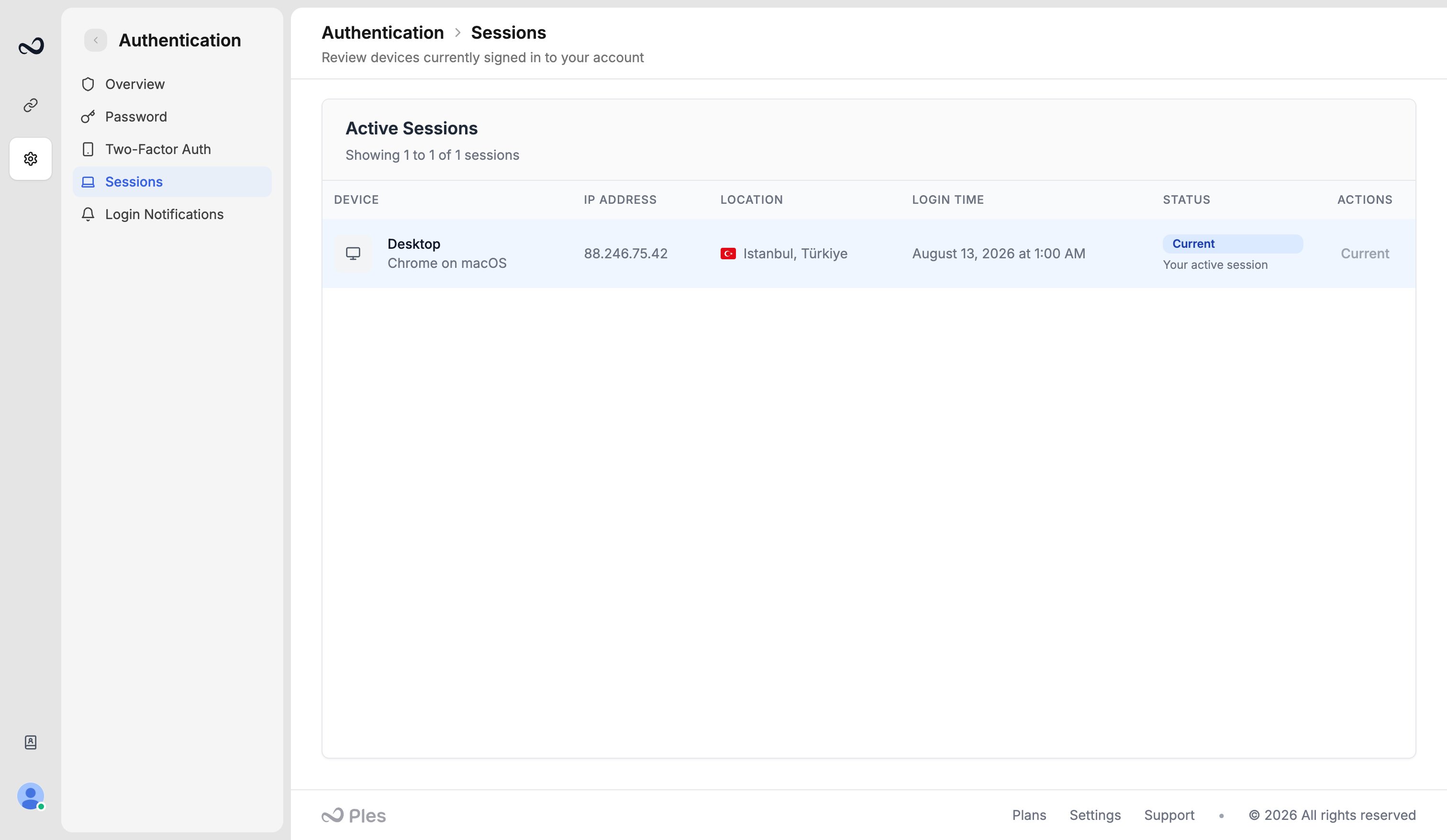 Each row shows:
* **Device**
* **IP address**
* **Location**
* **Login time** (in your [account timezone](/article/account-settings), for example July 15, 2025)
* **Status** (this device vs other sessions)
## End a session
Go to `/settings/authentication/sessions`.
Use **Actions** on that row to sign it out.
Click **Terminate All Other Sessions** to keep this browser and sign out every other device.
Terminating a session signs that device out immediately. The person must enter email, password, and 2FA (if enabled) to get back in.
If you do not recognize a row, terminate it and turn on [login notification emails](/article/login-notifications).
## What's next?
Turn on 2FA with an authenticator app or email OTP.
Optionally email yourself when someone signs in, including IP and location.
Set your timezone, change your password, and see usage for domains, links, and AI.
Sign in with your email and password. Complete 2FA if you turned it on.
Each row shows:
* **Device**
* **IP address**
* **Location**
* **Login time** (in your [account timezone](/article/account-settings), for example July 15, 2025)
* **Status** (this device vs other sessions)
## End a session
Go to `/settings/authentication/sessions`.
Use **Actions** on that row to sign it out.
Click **Terminate All Other Sessions** to keep this browser and sign out every other device.
Terminating a session signs that device out immediately. The person must enter email, password, and 2FA (if enabled) to get back in.
If you do not recognize a row, terminate it and turn on [login notification emails](/article/login-notifications).
## What's next?
Turn on 2FA with an authenticator app or email OTP.
Optionally email yourself when someone signs in, including IP and location.
Set your timezone, change your password, and see usage for domains, links, and AI.
Sign in with your email and password. Complete 2FA if you turned it on.