> ## Documentation Index
> Fetch the complete documentation index at: https://help.ples.com/llms.txt
> Use this file to discover all available pages before exploring further.
# How to sign in
> Sign in to Ples with your email and password. Complete 2FA if you turned it on.
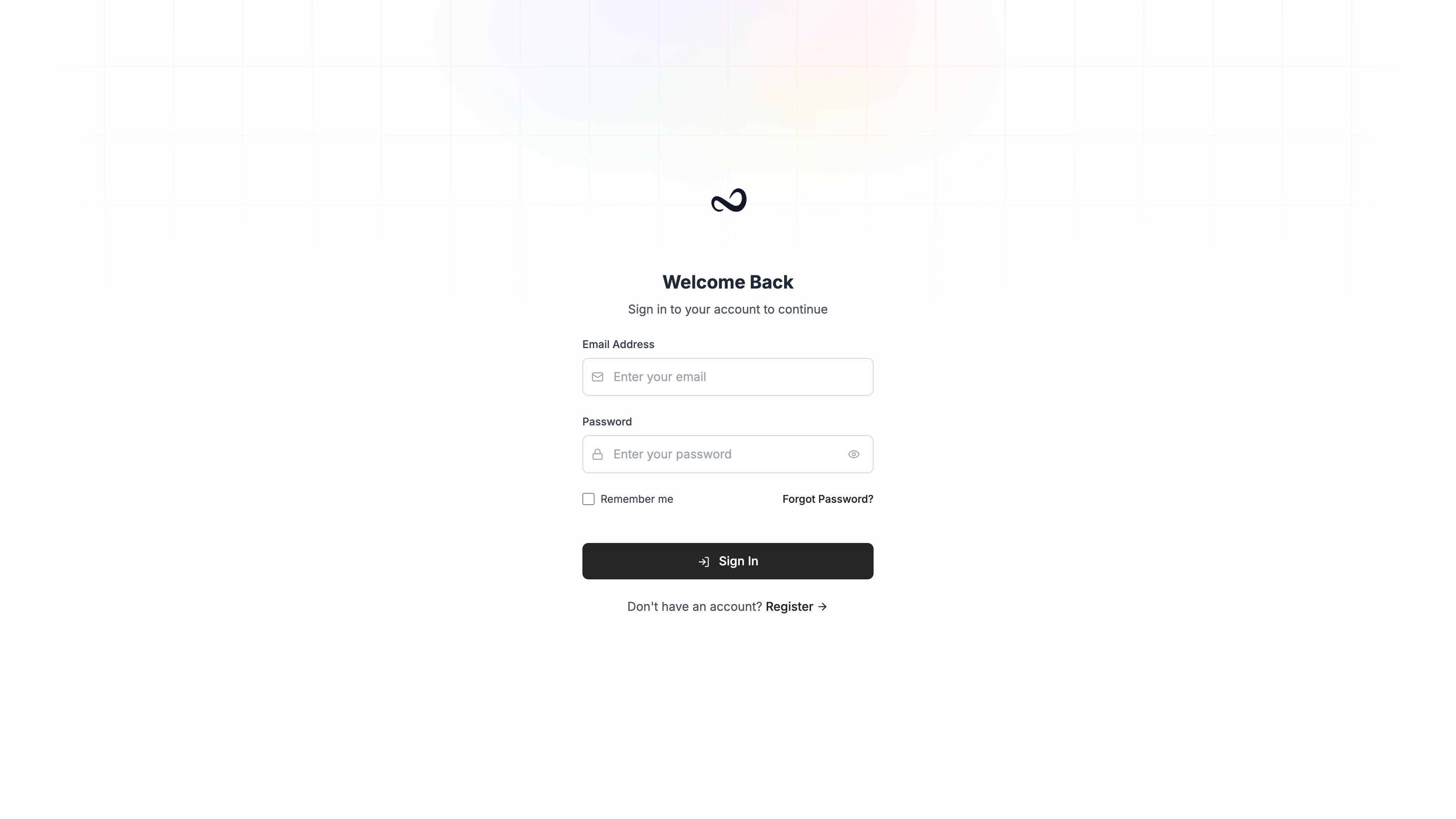
Sign in at [app.ples.com/login](https://app.ples.com/login).
 ## Steps
Use the same address you registered.
Check **Remember me** if you are on a device you trust.
Click **Sign In**. If two-factor authentication is on, Ples sends you to the 2FA challenge next.
## Two-factor challenge
If you enabled 2FA, enter the code from your authenticator app or the email OTP, then continue. See [Two-factor authentication](/article/two-factor-authentication).
## Forgot your password?
Click **Forgot Password?** on the login page, enter your email, and set a new password from the reset link.
Your email must be confirmed before sign-in works. If you just registered, [confirm your email](/article/confirm-your-email) first.
## What's next?
Add a domain, paste your first backlinks, and see monitoring start.
Read portfolio metrics, top domains, tags, team, and latest issues.
Turn on 2FA with an authenticator app or email OTP.
## Steps
Use the same address you registered.
Check **Remember me** if you are on a device you trust.
Click **Sign In**. If two-factor authentication is on, Ples sends you to the 2FA challenge next.
## Two-factor challenge
If you enabled 2FA, enter the code from your authenticator app or the email OTP, then continue. See [Two-factor authentication](/article/two-factor-authentication).
## Forgot your password?
Click **Forgot Password?** on the login page, enter your email, and set a new password from the reset link.
Your email must be confirmed before sign-in works. If you just registered, [confirm your email](/article/confirm-your-email) first.
## What's next?
Add a domain, paste your first backlinks, and see monitoring start.
Read portfolio metrics, top domains, tags, team, and latest issues.
Turn on 2FA with an authenticator app or email OTP.