> ## Documentation Index
> Fetch the complete documentation index at: https://help.ples.com/llms.txt
> Use this file to discover all available pages before exploring further.
# Two-factor authentication
> Turn on 2FA with an authenticator app (TOTP) or email OTP, save backup codes, and complete the challenge at sign-in.
Two-factor authentication adds a second step after your password. You can use an **authenticator app** (TOTP) or **email verification** (OTP).
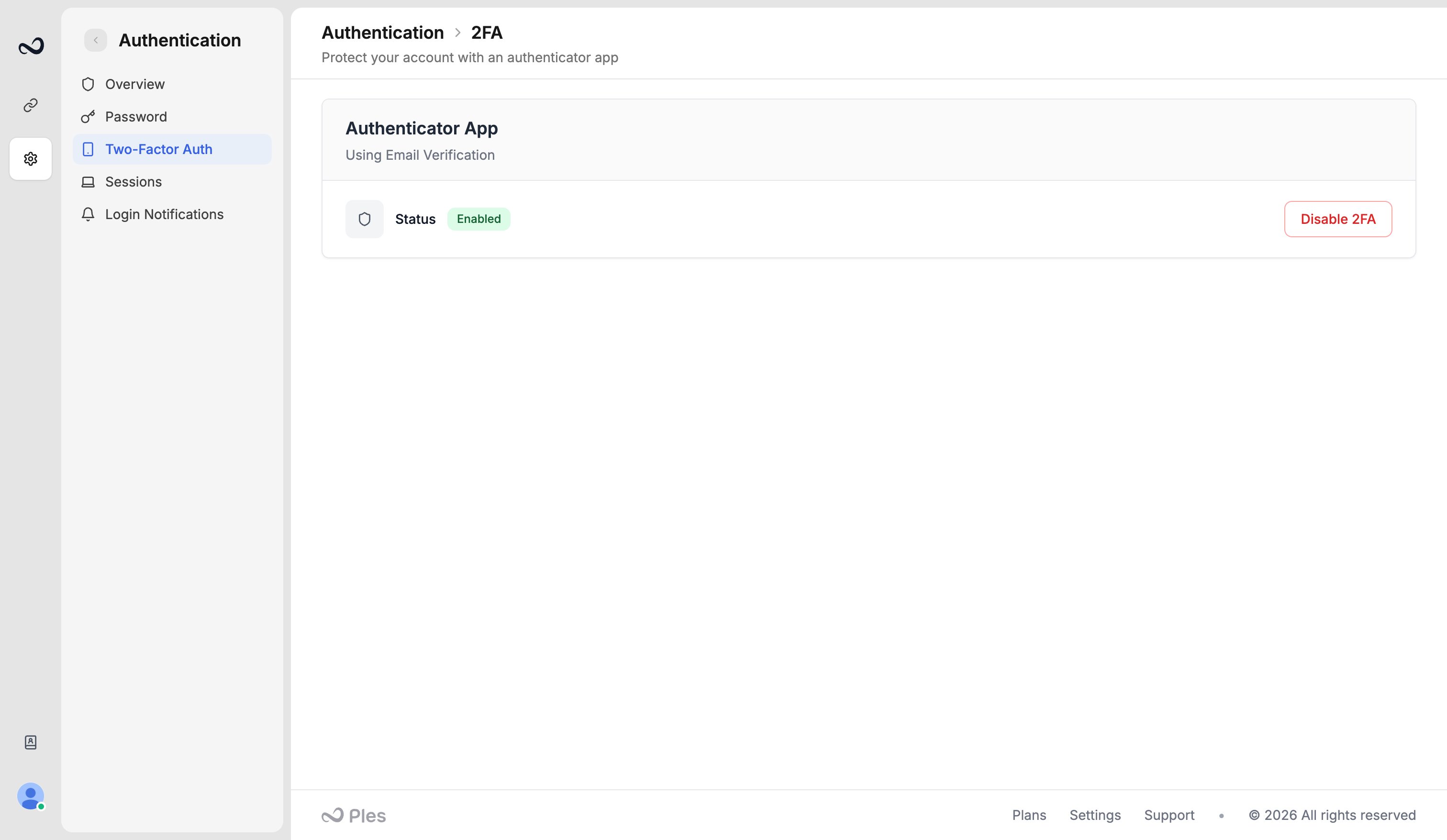 ## Turn 2FA on
Go to [app.ples.com/settings/authentication/2fa](https://app.ples.com/settings/authentication/2fa).
Choose **Authenticator App** (Google Authenticator, Authy, or similar) or **Email Verification**.
For TOTP, scan the QR code and enter a 6-digit code. For email, enter the code Ples sends to your account email. Save your [backup codes](/article/2fa-backup-codes) if you chose an authenticator.
## At sign-in
After email and password, Ples sends you to `/2fa-challenge` (**Verify Your Login**). Enter the 6-digit code from the app or from email, complete Cloudflare Turnstile, and click **Verify**. Email OTP can be resent after a short cooldown.
Use an authenticator app if you can. Email OTP depends on that message arriving — see [Email is not arriving](/article/email-not-arriving).
You can disable 2FA from the same settings page after you confirm it is you.
## What's next?
Save the 10 authenticator backup codes and use them if you lose your device.
See devices signed in to your account and terminate a session.
Optionally email yourself when someone signs in, including IP and location.
Sign in with your email and password. Complete 2FA if you turned it on.
## Turn 2FA on
Go to [app.ples.com/settings/authentication/2fa](https://app.ples.com/settings/authentication/2fa).
Choose **Authenticator App** (Google Authenticator, Authy, or similar) or **Email Verification**.
For TOTP, scan the QR code and enter a 6-digit code. For email, enter the code Ples sends to your account email. Save your [backup codes](/article/2fa-backup-codes) if you chose an authenticator.
## At sign-in
After email and password, Ples sends you to `/2fa-challenge` (**Verify Your Login**). Enter the 6-digit code from the app or from email, complete Cloudflare Turnstile, and click **Verify**. Email OTP can be resent after a short cooldown.
Use an authenticator app if you can. Email OTP depends on that message arriving — see [Email is not arriving](/article/email-not-arriving).
You can disable 2FA from the same settings page after you confirm it is you.
## What's next?
Save the 10 authenticator backup codes and use them if you lose your device.
See devices signed in to your account and terminate a session.
Optionally email yourself when someone signs in, including IP and location.
Sign in with your email and password. Complete 2FA if you turned it on.