> ## Documentation Index
> Fetch the complete documentation index at: https://help.ples.com/llms.txt
> Use this file to discover all available pages before exploring further.
# Understanding the dashboard
> Read the Ples dashboard: portfolio metrics, top domains, tags, team, and latest issues.
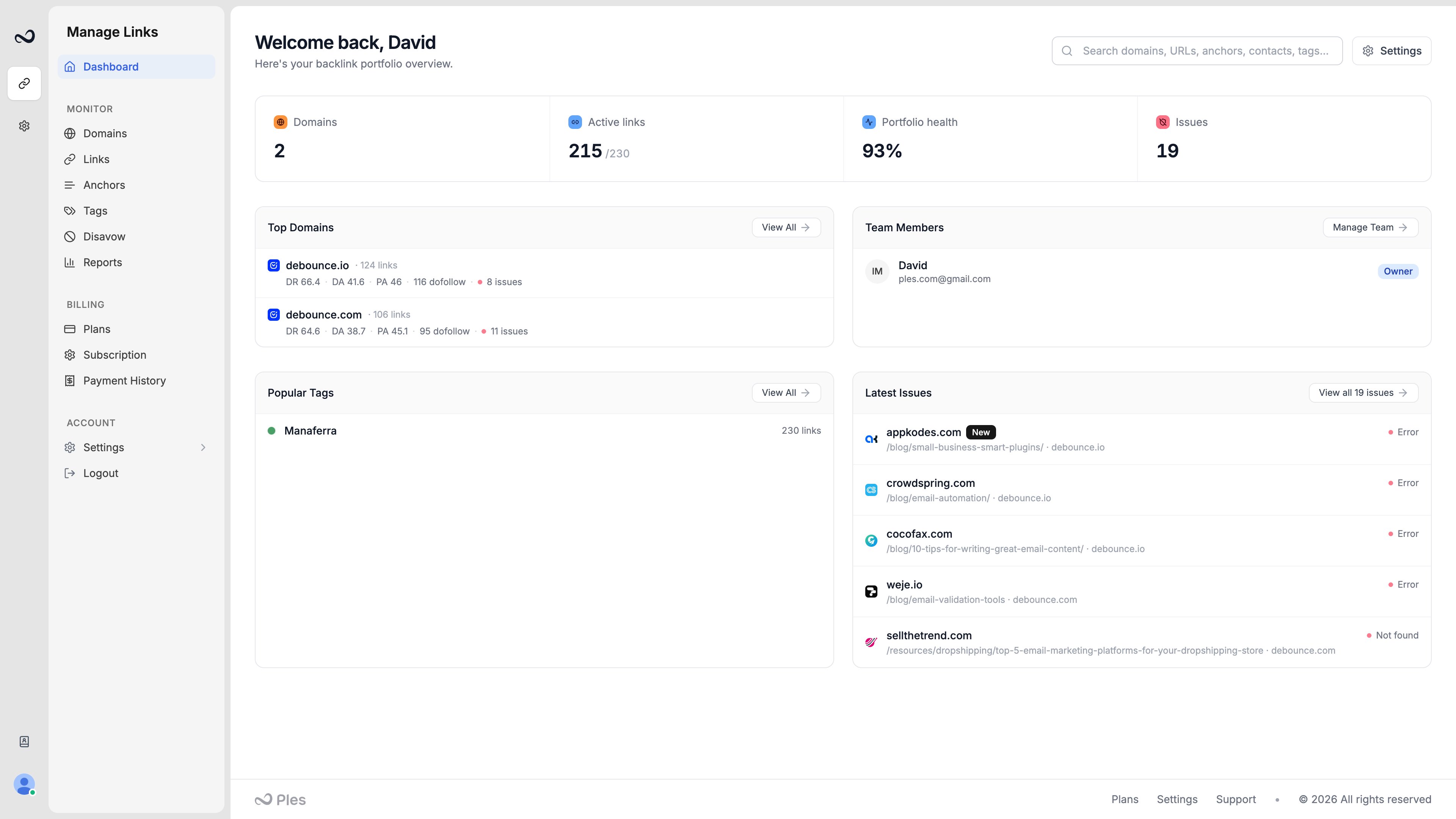
The dashboard is the home page after you sign in (`https://app.ples.com`). It is a snapshot of your backlink portfolio, not a replacement for the Links table.
 ## Metric cards
Typical cards include:
* **Domains** — how many properties you monitor versus your plan limit
* **Active links** — links currently using a monitoring slot
* **Portfolio health** — share of live dofollow links
* **Issues** — links that are not found, in error, or nofollow
## Sections below the cards
* **Top domains** — properties with the most monitored links
* **Team** — who is on the account (for example David as owner)
* **Popular tags** — tags you use most often
* **Latest issues** — recent status problems, with a path into [Link issues](/article/link-issues)
## Search
Use the header search to find domains, URLs, anchors, contacts, and tags without leaving the page. See [Filter, sort, and search](/article/filter-sort-search).
## What's next?
How Ples checks backlinks every 24 hours and where to review status and issues.
Read URL, status, anchor, GI, DR, DA, LQS, last checked, and more.
Review error, not found, and nofollow links on the Issues page.
See portfolio health, average LQS, indexing, tags, and disavow candidates.
## Metric cards
Typical cards include:
* **Domains** — how many properties you monitor versus your plan limit
* **Active links** — links currently using a monitoring slot
* **Portfolio health** — share of live dofollow links
* **Issues** — links that are not found, in error, or nofollow
## Sections below the cards
* **Top domains** — properties with the most monitored links
* **Team** — who is on the account (for example David as owner)
* **Popular tags** — tags you use most often
* **Latest issues** — recent status problems, with a path into [Link issues](/article/link-issues)
## Search
Use the header search to find domains, URLs, anchors, contacts, and tags without leaving the page. See [Filter, sort, and search](/article/filter-sort-search).
## What's next?
How Ples checks backlinks every 24 hours and where to review status and issues.
Read URL, status, anchor, GI, DR, DA, LQS, last checked, and more.
Review error, not found, and nofollow links on the Issues page.
See portfolio health, average LQS, indexing, tags, and disavow candidates.