

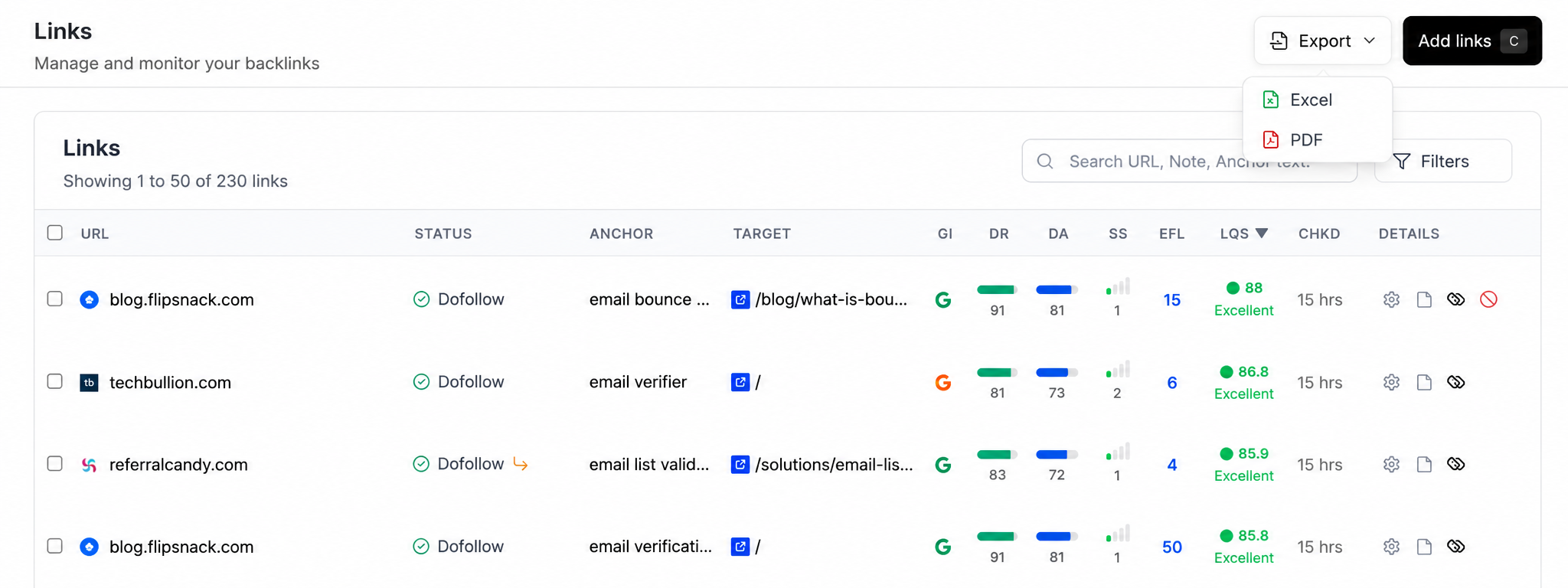
Steps
1
Open Monitored Links
Go to app.ples.com/links. You need Links Table view permission.
2
Filter the table
Apply domain, status, tag, contact, indexing, or disavow filters so the export matches what you want to share.
3
Choose Excel or PDF
Open the export menu and pick Excel or PDF. Ples downloads the file from
/links-export.Exports are rate-limited. If you see a wait message, pause and try again shortly.
What’s next?
Reports overview
See portfolio health, average LQS, indexing, tags, and disavow candidates.
Monitored Links
Read URL, status, anchor, GI, DR, DA, LQS, last checked, and more.
Filter, sort, and search
Filter and sort Monitored Links, and search domains, URLs, anchors, and tags.
Export a disavow file
Download a per-domain disavow file in GSC format and upload it in Search Console.