

Check these first
1
Search the right inbox
Use the address on the account. Search for
info@e.ples.com or Ples.2
Look in spam and promotions
Mark the message as not spam so later mail lands in the inbox.
3
Match the message type
Confirmation, team invites, 2FA codes, login alerts, link-change alerts, invoices, and plan-expiry reminders are separate emails. Some are optional or delayed.
By message type
- Confirm your email — required before the first sign-in. Resend from the confirmation screen. See Confirm your email.
- Team invitation — only the invitee gets this. The owner can resend from Team.
- 2FA email OTP — only if you chose email 2FA. Use Resend on
/2fa-challengeafter the cooldown. - Login notifications — off until you enable them at
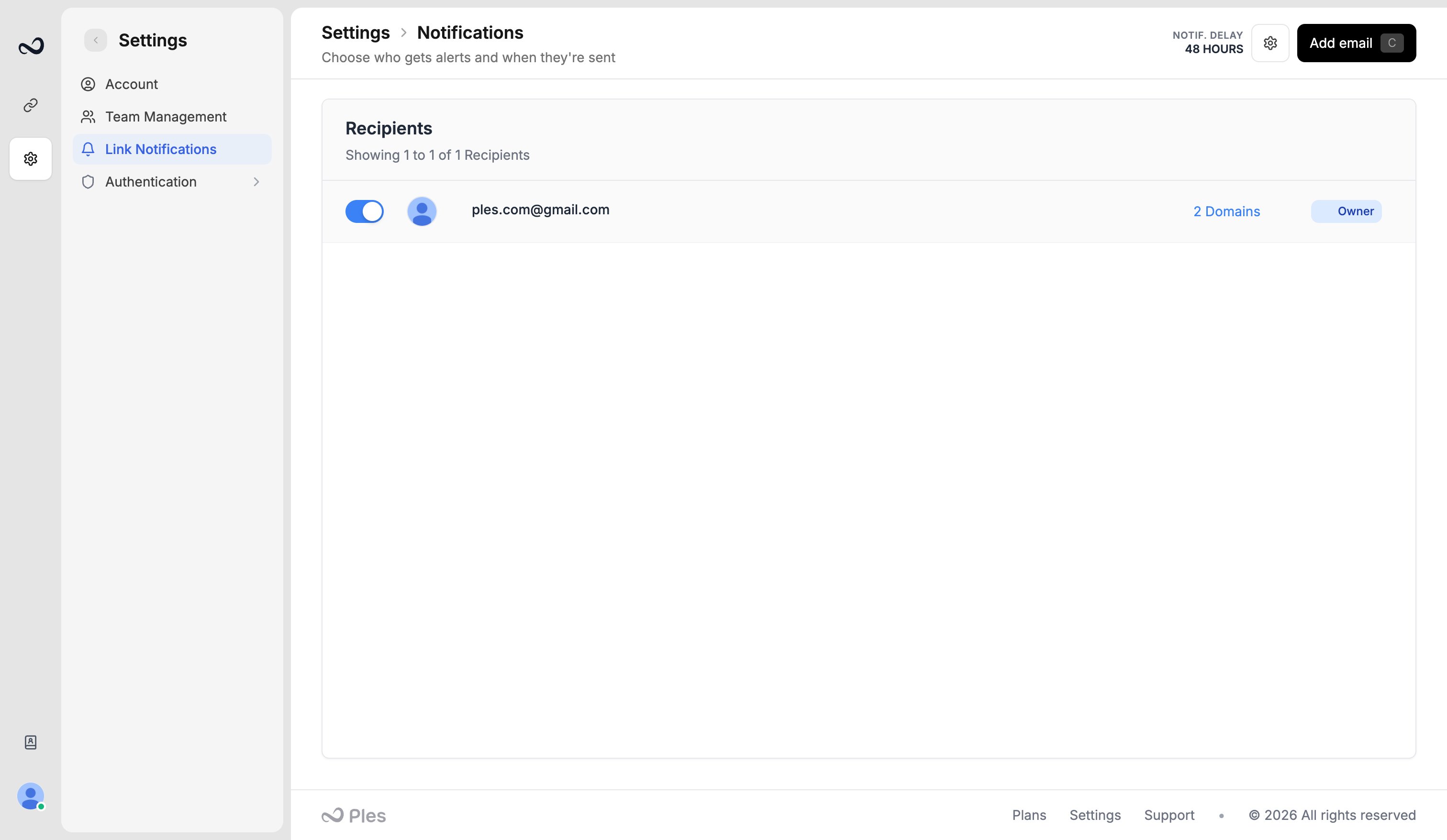
/settings/authentication/notifications. - Link change alerts — only if the address is on
/settings/notification(max 5). A 24 / 48 / 72 hour delay means the mail waits on purpose. - Billing and expiry — renewal and 60-day retention reminders go to the account owner.
Invited teammates skip confirmation. If David invited you, go straight to sign in after you set a password from the invite link.
What’s next?
Confirm your email
Open the confirmation message from Ples so you can sign in.
Link change notifications
Email up to 5 recipients when a backlink status changes.
Login notifications
Optionally email yourself when someone signs in, including IP and location.
Two-factor authentication
Turn on 2FA with an authenticator app or email OTP.