

Filter and sort Monitored Links
1
Open Monitored Links
Go to
/links.2
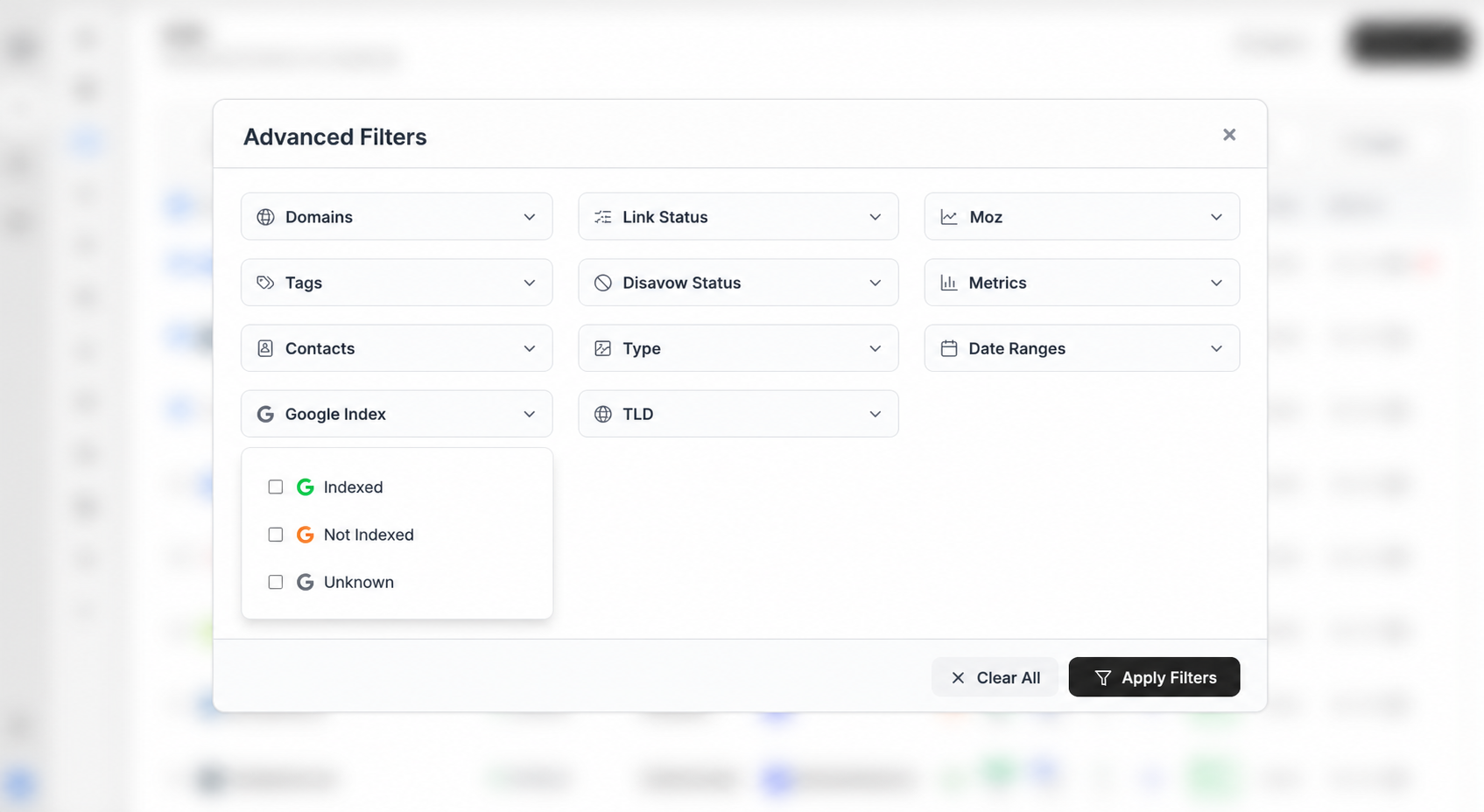
Open the filter panel
Choose filters such as domain, status, tags, contacts, Google index, DA, PA, spam score, EFL, LQS, last checked, and date added. An active-filter count appears on the button.
3
Sort
Click a sortable header (URL, Status, Anchor, Target, GI, DR, DA, SS, EFL, LQS, and others) to change column and direction.
/links?anchor= from Anchors, or a domain filter from Domains.
Header search
1
Click the search field
In the global header, use Search domains, URLs, anchors, contacts, tags…
2
Type at least three characters
Results appear after three characters. Pick a row to open that domain, link, anchor, contact, or tag.
What’s next?
Monitored Links
Read URL, status, anchor, GI, DR, DA, LQS, last checked, and more.
Tags
Create colored tags and assign up to 5 per link.
Contacts
Save a name and email, then assign the contact to the links they placed.
Bulk actions
Select links to add tags, edit contacts, update disavow, or delete rows.