

https://app.ples.com/discover. A number next to the item is how many rows are waiting. You need Backlink Finder view permission (separate from Monitored Links). Adding, ignoring, or disavowing a row needs edit permission.
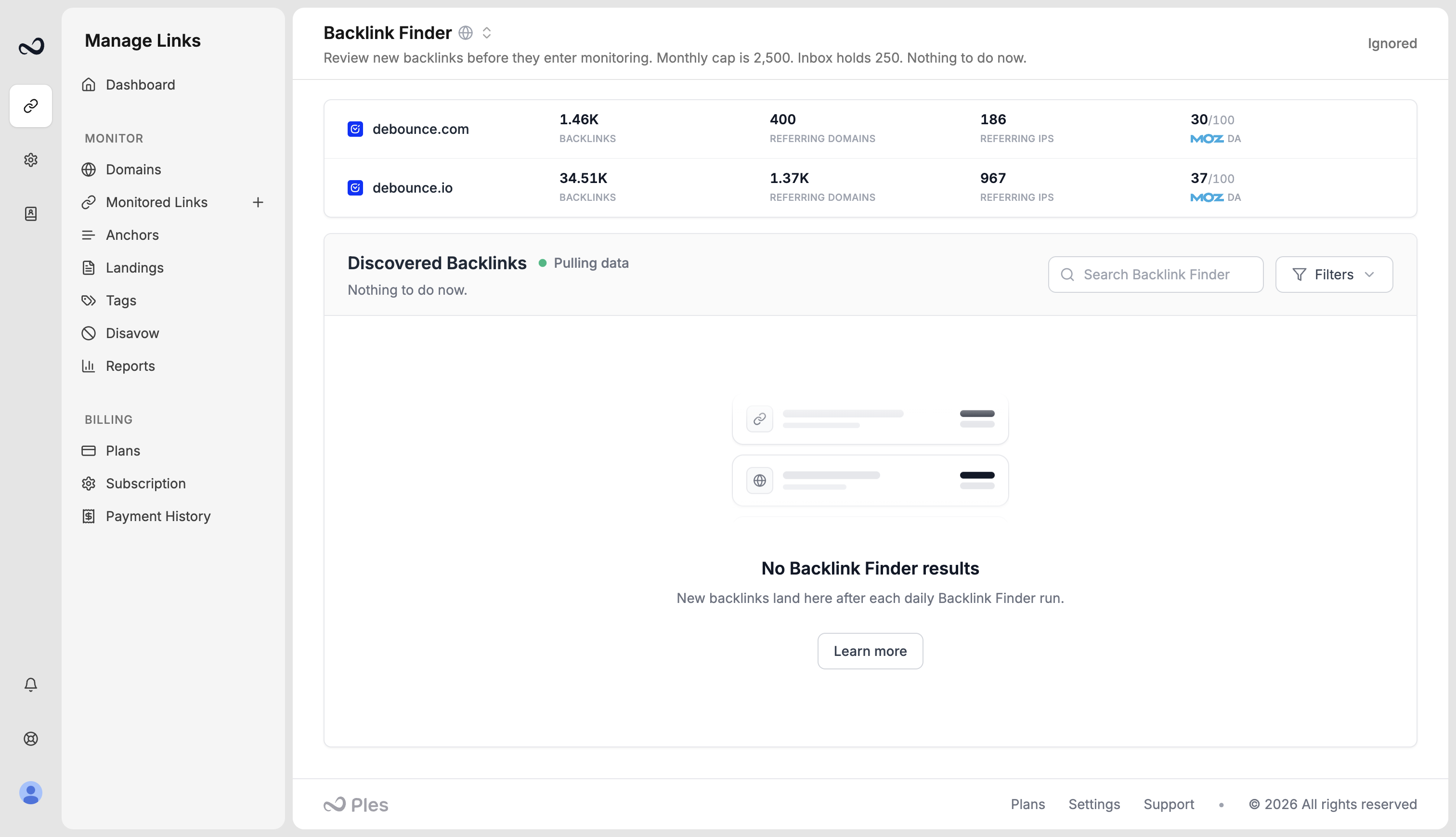
How pulls work
Ples makes one Backlink Finder request per domain per day. Each request starts with the newest backlinks, then older history, and stops when your inbox is full or your monthly find allowance is used.- URLs you already monitor, ignored, or disavowed do not appear again.
- New finds count against the monthly allowance for the current billing period.
- Waiting rows count against inbox capacity (one-tenth of the monthly allowance on paid plans; on trial, inbox equals the 20 monthly finds).
- When the inbox is full, pulls pause until you add, ignore, or disavow waiting links.
- When the monthly allowance is used, pulls resume after you upgrade or when the next billing period starts. See the next reset on Subscription.
Adding a URL from Backlink Finder uses an active link slot and a monthly add, the same as adding backlinks yourself. That is separate from the Finder monthly allowance and inbox cap.
Monthly allowance and inbox
These two caps are separate from active monitored links.
Inbox size is 1/10 of the monthly find allowance on paid plans. On trial, inbox equals the 20 monthly finds. Adding, ignoring, or disavowing a waiting row frees an inbox slot so the next daily pull can fill it again — until the monthly allowance is used.
See Plan limits for the full table.
What each row shows
Steps
1
Open Backlink Finder
Go to app.ples.com/discover, or open Monitored Links, click +, then Backlink Finder. Use search or Filters to limit the inbox to one domain.
2
Inspect the URL
Open the referring page and confirm you want Ples to monitor it. Skip anything you do not own or do not want on Monitored Links. Sort by Score if you want stronger referring domains first.
3
Add, ignore, or disavow
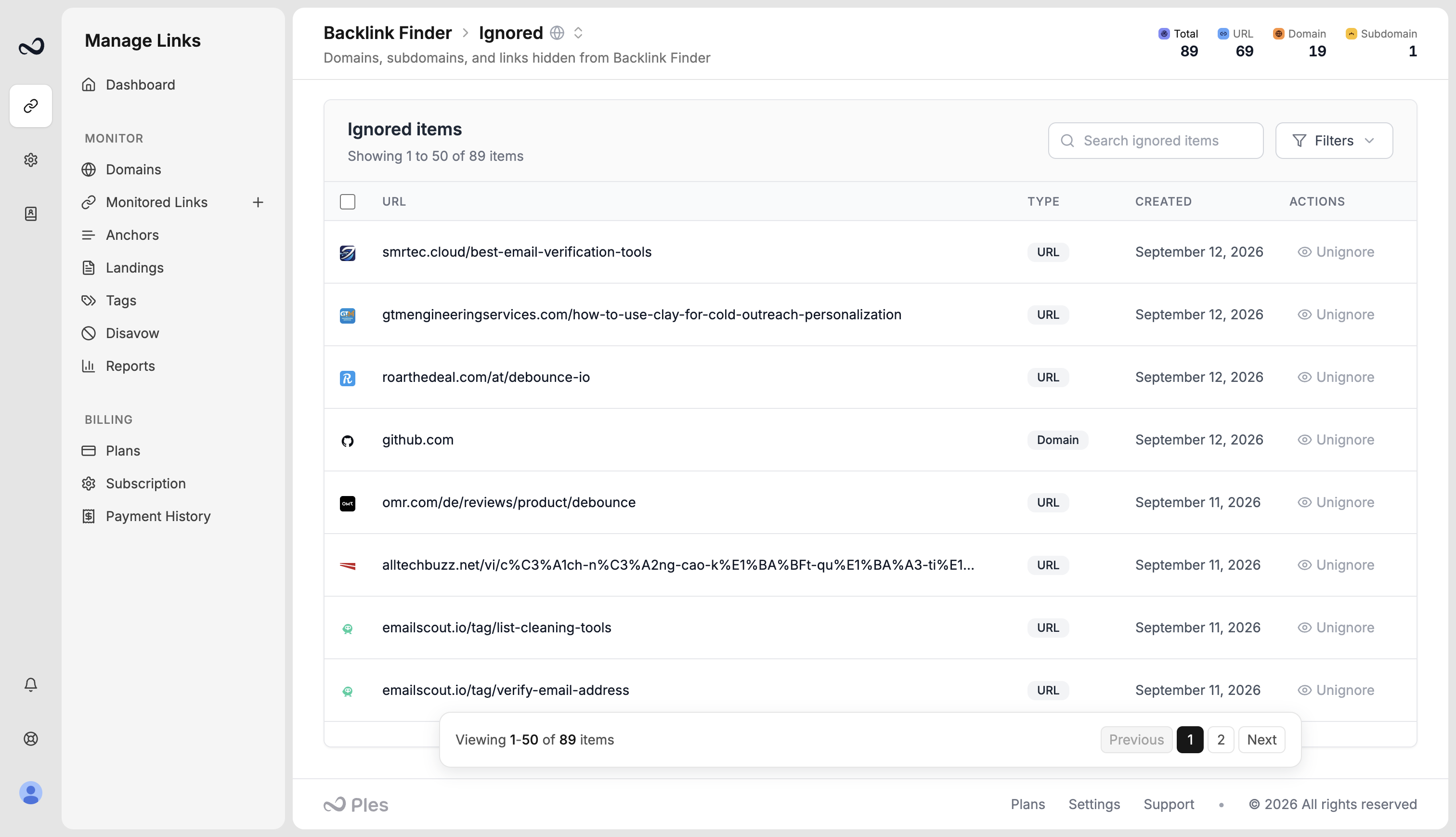
Add moves the URL into Monitored Links. You can assign tags in the modal. Ignore removes it from the inbox and it will not come back. Disavow can target the domain, subdomain, or URL on your disavow list; disavowing a domain or subdomain also ignores other finds from that host.
/discover/ignored) to see ignore rules for a URL, domain, or subdomain. Remove a rule if you want Finder to show that host again.
Empty inbox and status messages
What’s next?
How to add backlinks
Paste up to 150 URLs yourself when you already know the pages.
Monitored Links
After you add a URL from Backlink Finder, review status, LQS, notes, tags, and last checked here.
Disavow list
Mark toxic referring domains or URLs and export a file for Google Search Console.
Plan limits
Active slots, monthly adds, Finder monthly allowance, and inbox capacity.